Importing from Adobe Sign
Move your history out of Adobe Acrobat Sign and into Propper. Completed agreements come across as Propper Sign agreements, each with its signed documents and audit trail, and your Adobe library documents become reusable Propper Gen templates you can edit and send. Once the first import is done, you can register a webhook so agreements that complete in Adobe afterward keep flowing in on their own.
- You are an organization administrator with access to your organization's settings.
- You have an Adobe Acrobat Sign integration key generated from your Adobe account.
- The import capability is enabled for your organization by Propper.
What the import brings over
| What comes over | What it means |
|---|---|
| Completed agreements | Each completed Adobe Acrobat Sign agreement becomes a Propper Sign agreement, with its signed PDF attached. |
| Signing evidence | The agreement's Adobe audit trail comes across as its evidence document, so your record of who signed and when stays intact. |
| Library documents | Adobe library documents import as reusable Propper Gen templates you can open, edit, and send. |
| New completions, ongoing | After the first import, an optional webhook keeps agreements that complete in Adobe afterward syncing into Propper automatically. |
Connect your Adobe Sign account
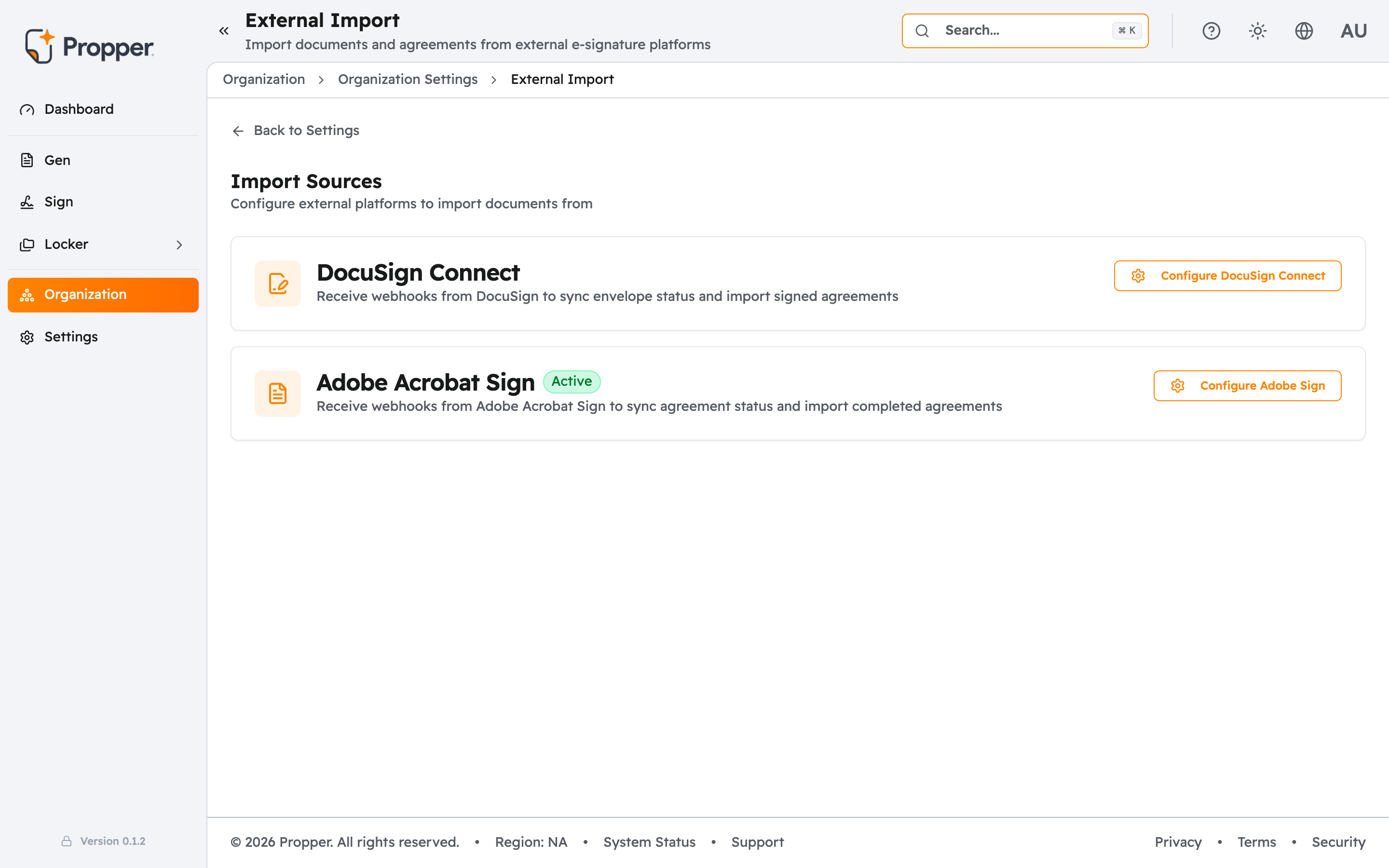
- In the Propper web app, go to Organization > Settings > External Import.
- On the External Import page, find the Adobe Acrobat Sign card and click Configure Adobe Sign.
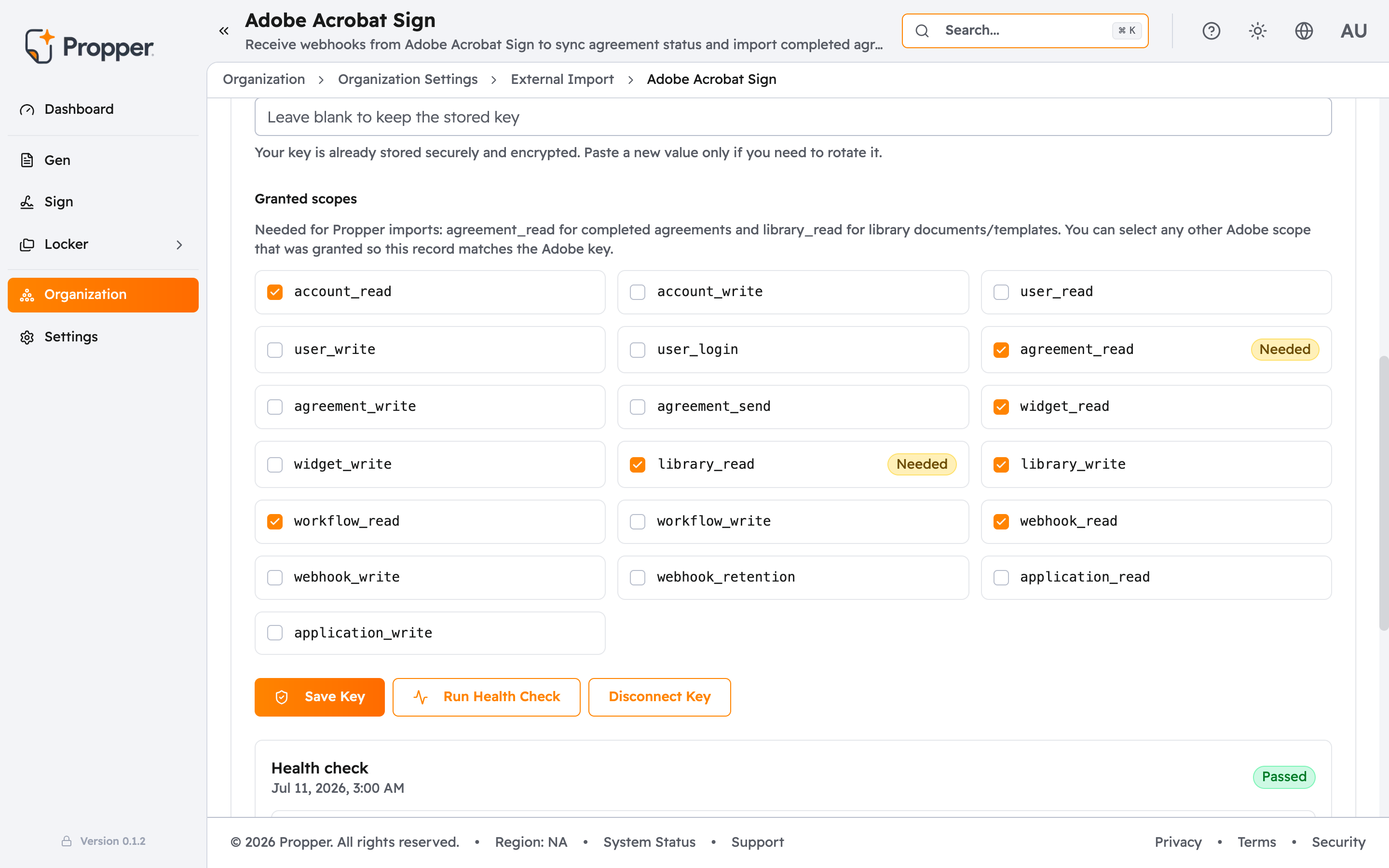
- On the Setup tab, paste your Adobe integration key into the Integration Key field and click Save Key. Propper stores the key securely and detects your Adobe API base URL automatically.
- Review the Granted scopes. The scopes marked Needed must stay selected so Propper can read your completed agreements and library documents.
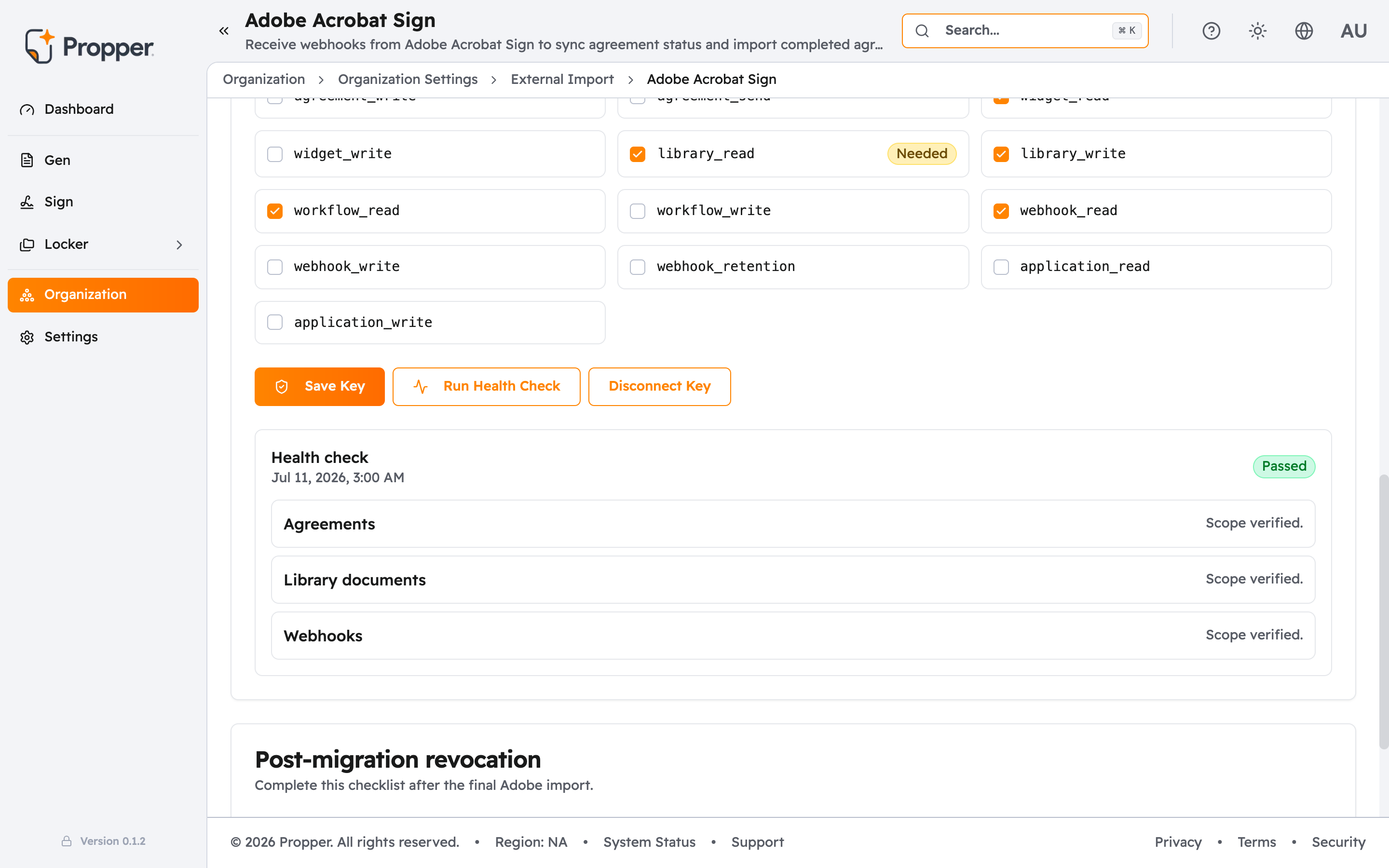
- Click Run Health Check to confirm the connection works. Each check reports its own result, and the panel shows Passed or Needs attention overall. Once a key is stored and healthy, the tab shows an Adobe Sign connected summary.
Import agreements
Open the Import documents tab. Propper lists your Adobe agreements and library documents, with a count of each at the top.
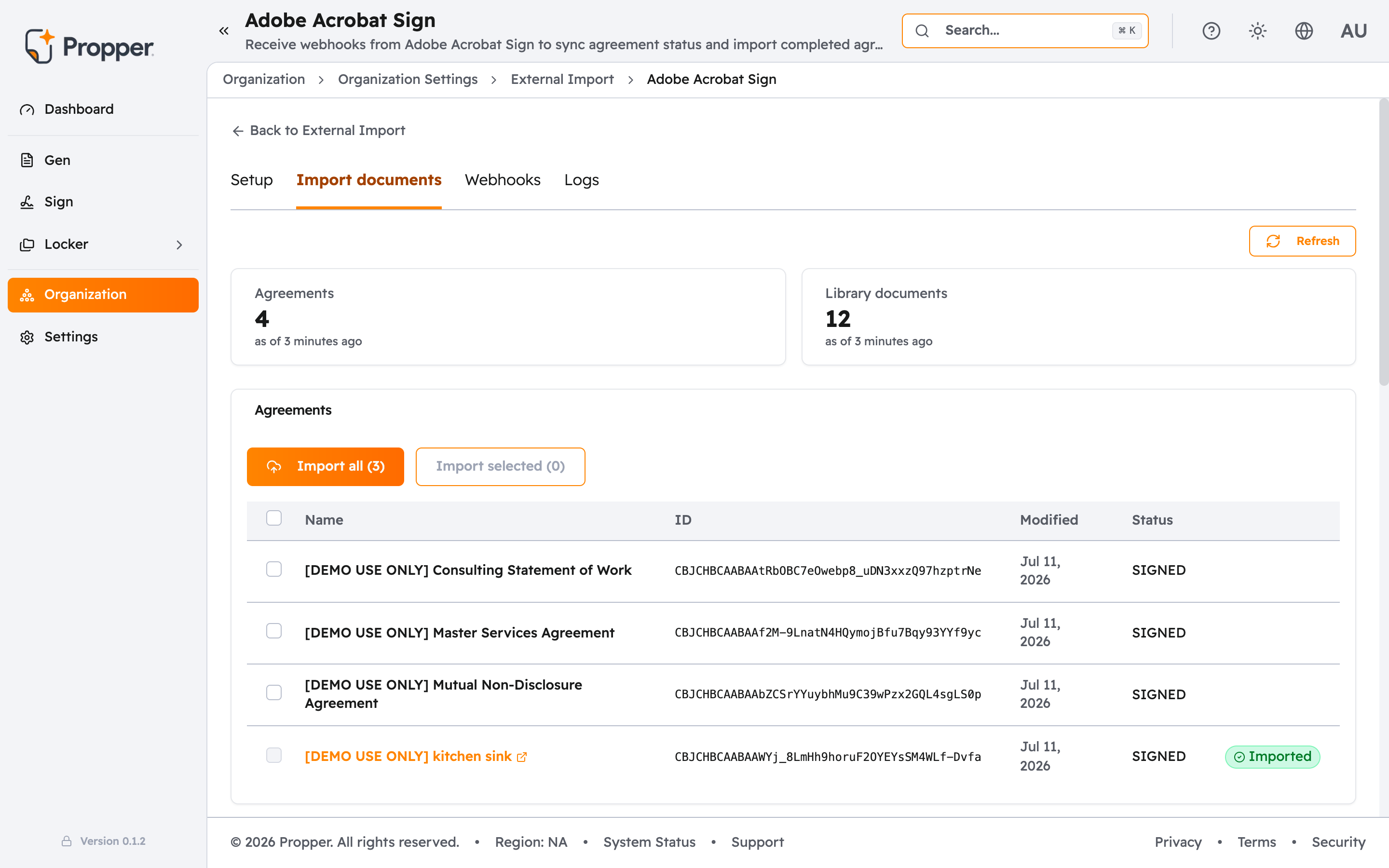
- In the Agreements section, select the rows you want with their checkboxes, or use the header checkbox to select every agreement that has not been imported yet.
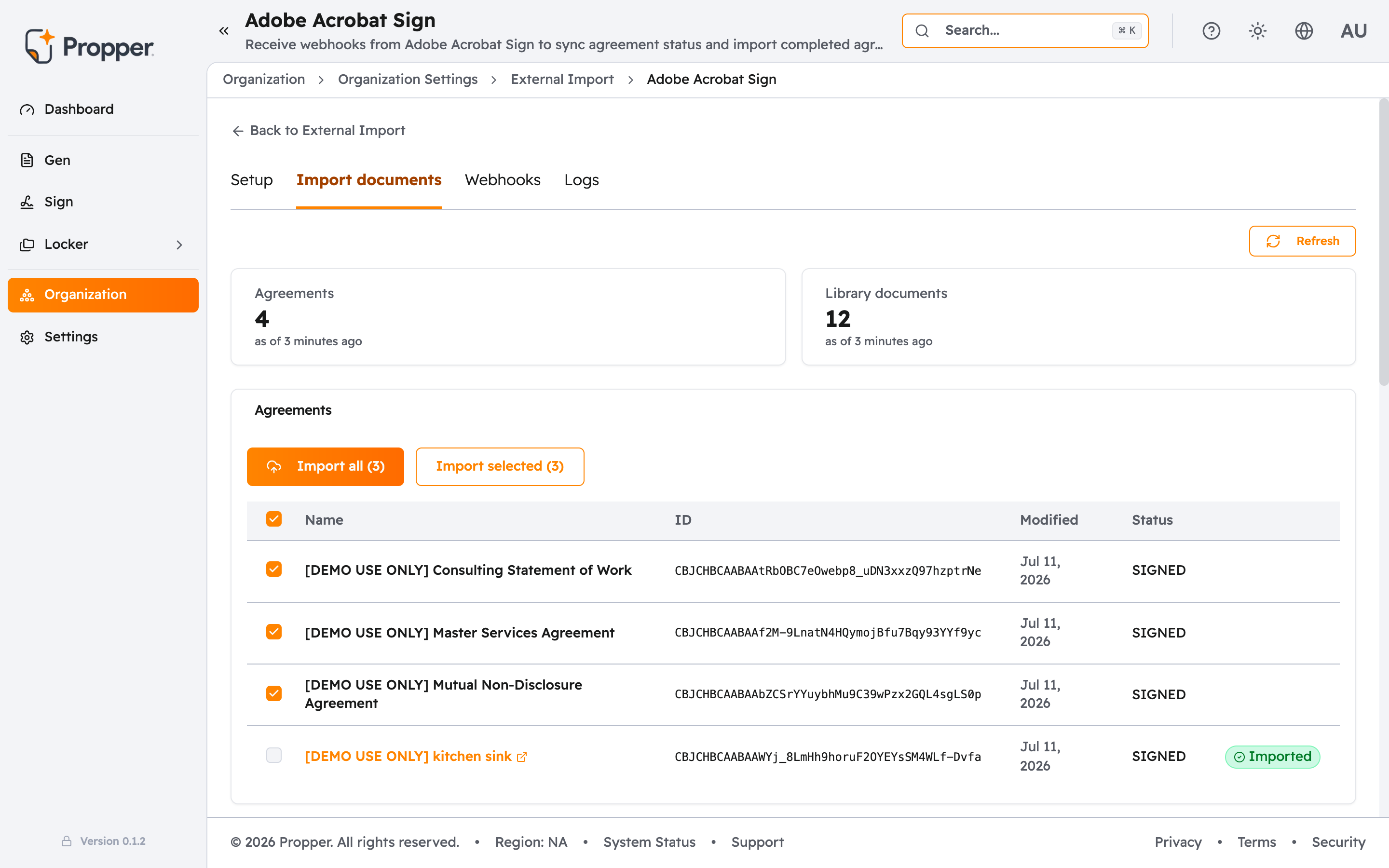
- Click Import selected, or click Import all to bring over everything that has not been imported. Propper imports agreements in the background, so you can leave the tab and come back.
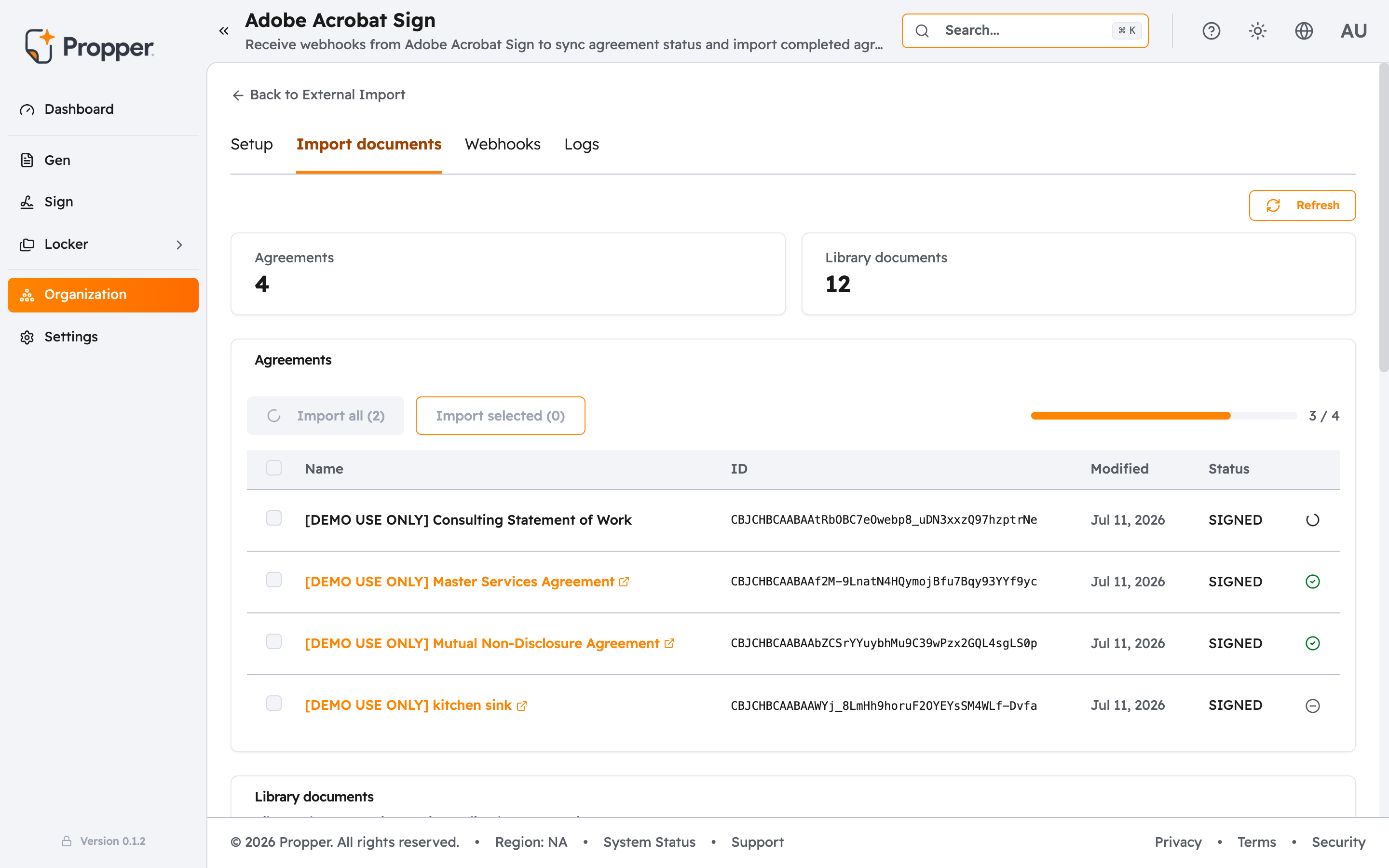
- Watch the progress bar and each row's status as the job runs. When it finishes, Propper shows a summary of how many agreements imported, skipped, and failed. Finished rows link straight to the new agreement in Propper Sign.
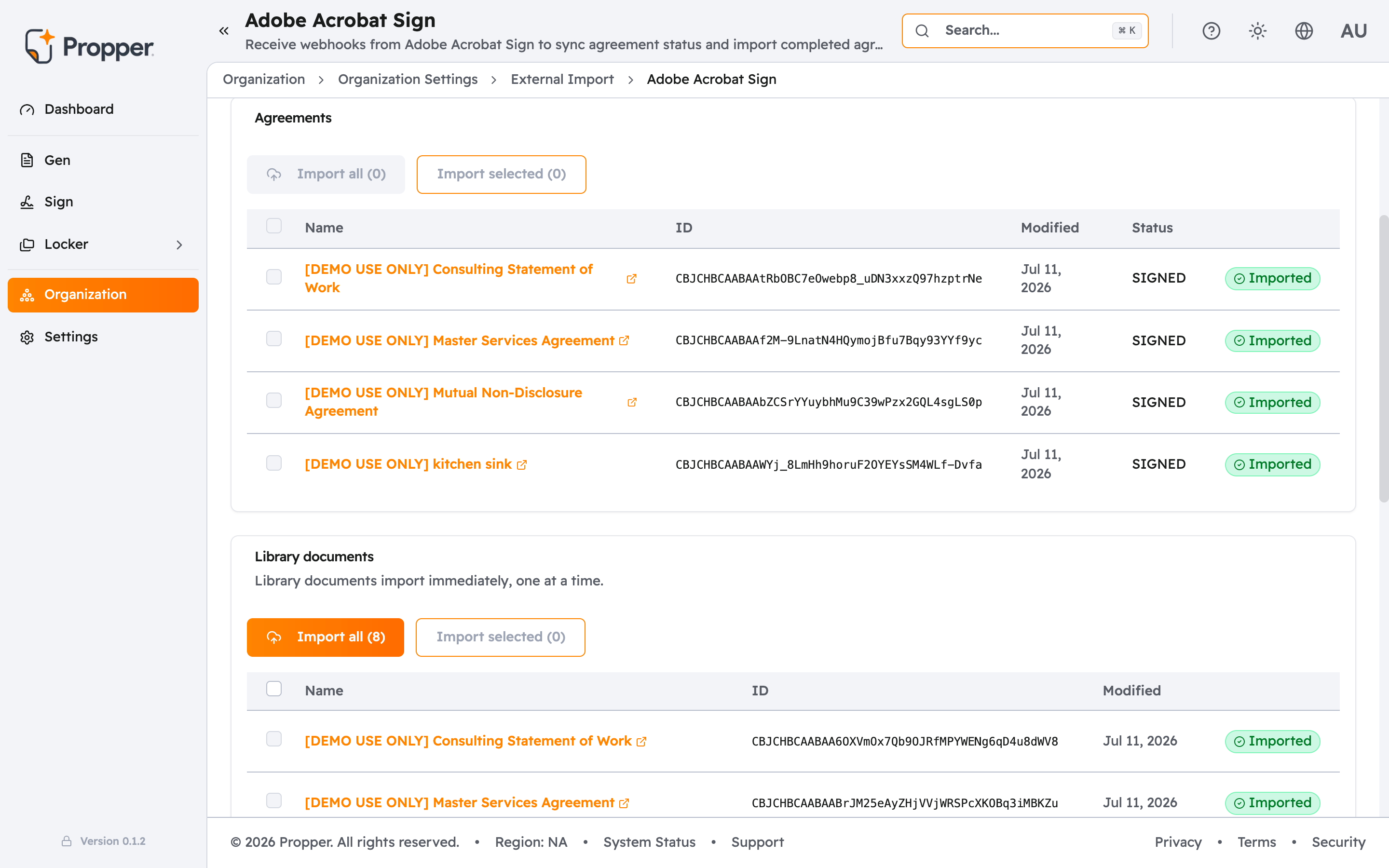
Re-running an import is safe. Agreements that already came over are marked Imported, are left out of the selection, and are counted as skipped rather than imported again.
Import library documents
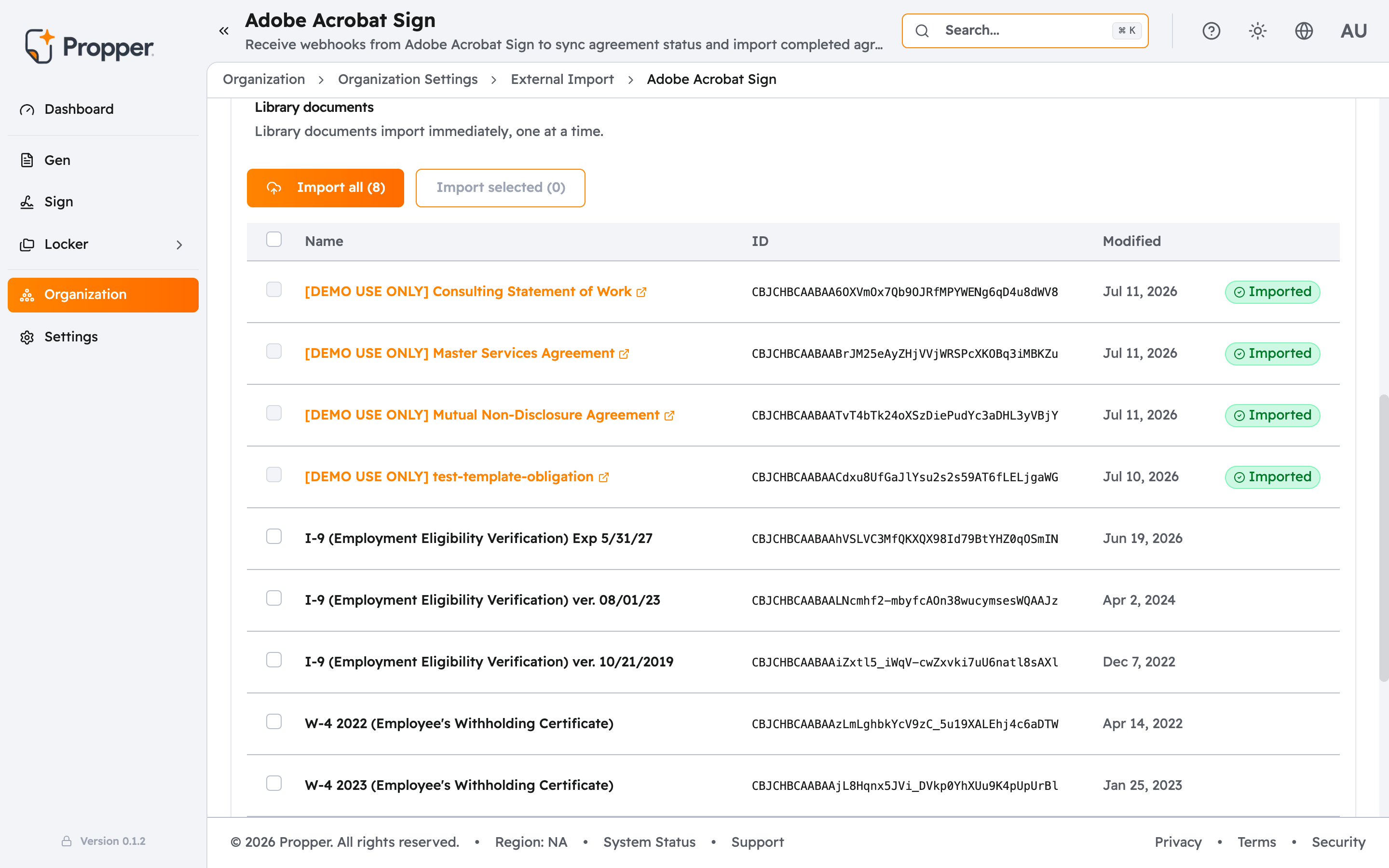
In the Library documents section of the same tab, select the documents you want and click Import selected, or Import all. Library documents import immediately, one at a time, and each row shows its result as it finishes. When a document is done, its row links to the new template. Click through to open it in the Propper Gen template editor.
For a single record you already have the Adobe ID for, expand the One-off imports card at the bottom of the tab, paste the Library document ID or Agreement ID, and click Import Template or Import Agreement. Open imported record takes you to the result.
Keep new completions syncing
The first import is a snapshot. To keep agreements that complete in Adobe afterward flowing into Propper, open the Webhooks tab and set up a webhook.
- Enter your Adobe Client ID and click Save Changes. Propper needs the client ID before Adobe can verify the webhook.
- Copy the Webhook URL with the copy button. You will see Webhook URL copied to clipboard when it is on your clipboard.
- In your Adobe Acrobat Sign account settings, create a new webhook, paste the copied URL as its destination, choose the agreement events you want (including agreement completion), and save. Adobe verifies the URL with Propper as it saves.
- Back in Propper, keep Process Webhooks Automatically and Enabled on. To have completed agreements arrive as full Propper Sign agreements rather than being filed into your Locker only, turn on Import completed agreements as Sign agreements.
Adobe accepting a webhook means Propper received the event, not that the agreement finished importing. Delivery and processing are separate steps. To confirm an event actually synced, check the Logs tab: a completed entry there is your proof the agreement came across.
Where your imported data lives
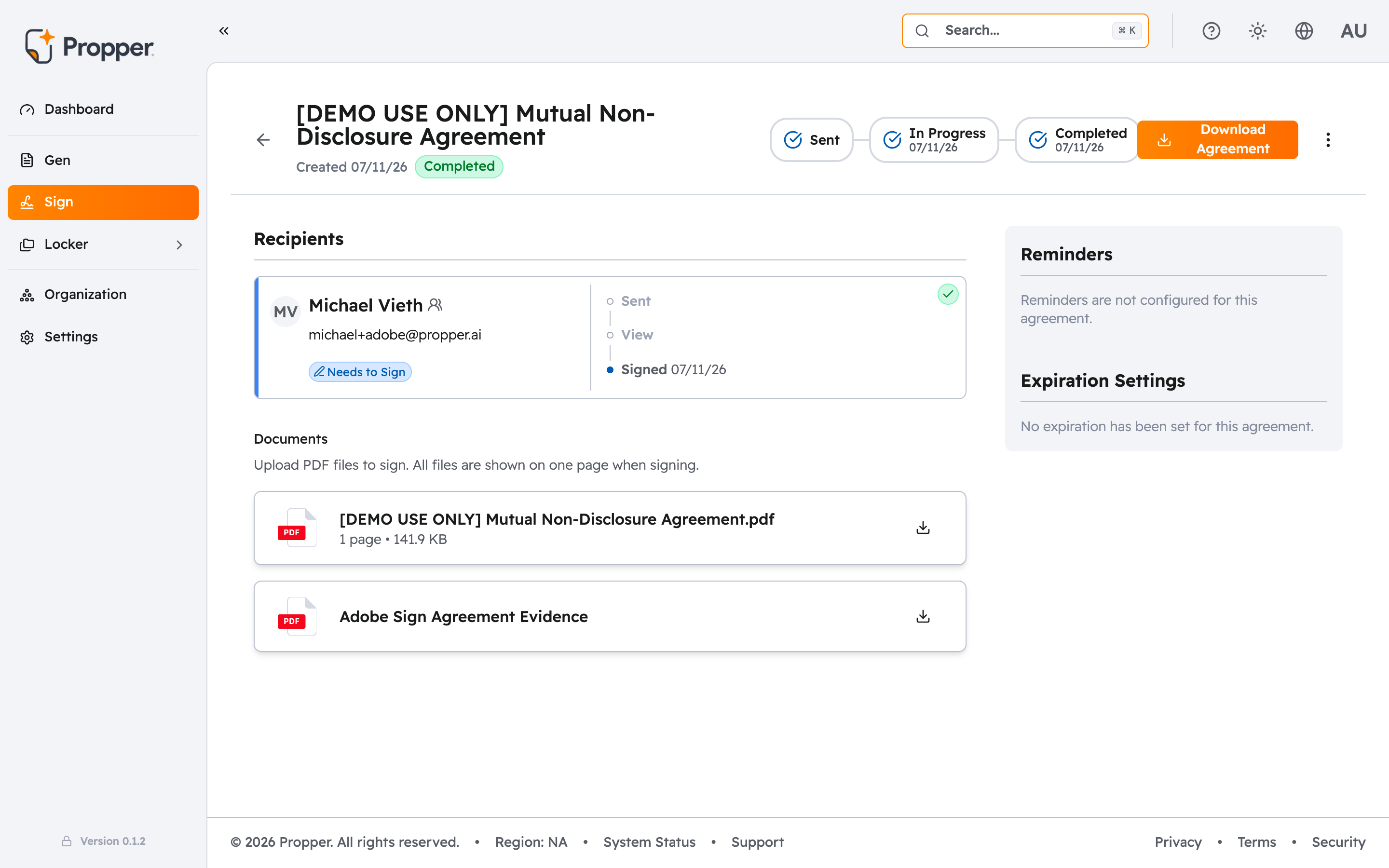
Imported agreements land in Propper Sign alongside the ones you create. Open an imported agreement and look at its documents: the source document is joined by an evidence document labeled Adobe Sign Agreement Evidence, so it is clear the record originated in Adobe.
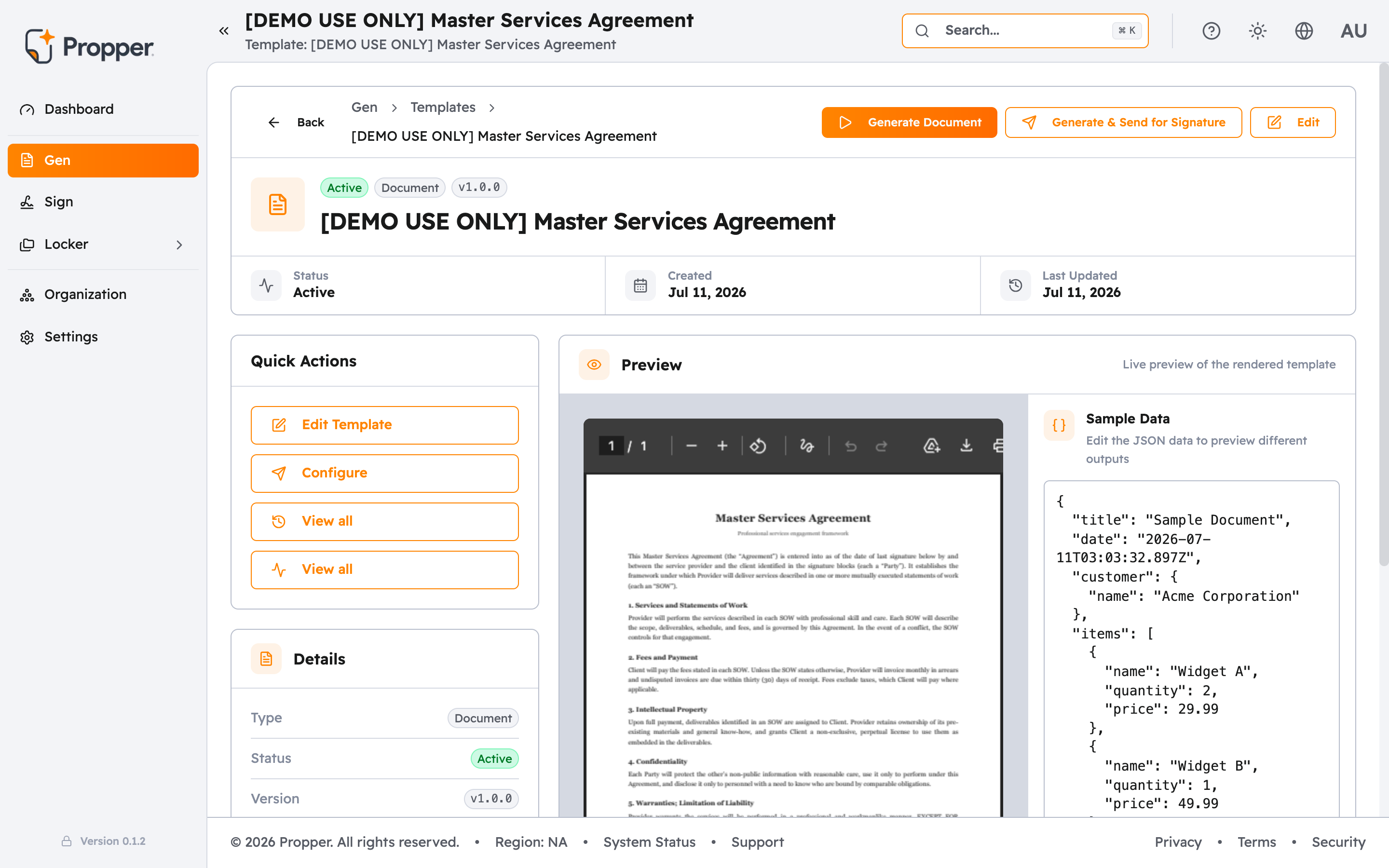
Imported library documents become Propper Gen templates. Open one and its content is laid out on the template editor canvas, ready for you to adjust and reuse.
Monitoring and troubleshooting
The Logs tab is where you confirm what happened. It has two views:
- API requests lists every call Propper made to Adobe while listing and importing, with columns for Time, Operation, Request, Status, Duration, Source, and Error. Use it when an import fails and you want to see what Adobe returned.
- Webhooks lists the events Adobe sent for ongoing sync, with Received, Event, Agreement ID, Adobe status, Result, and Error. Click any row to see the full detail, including the raw event.
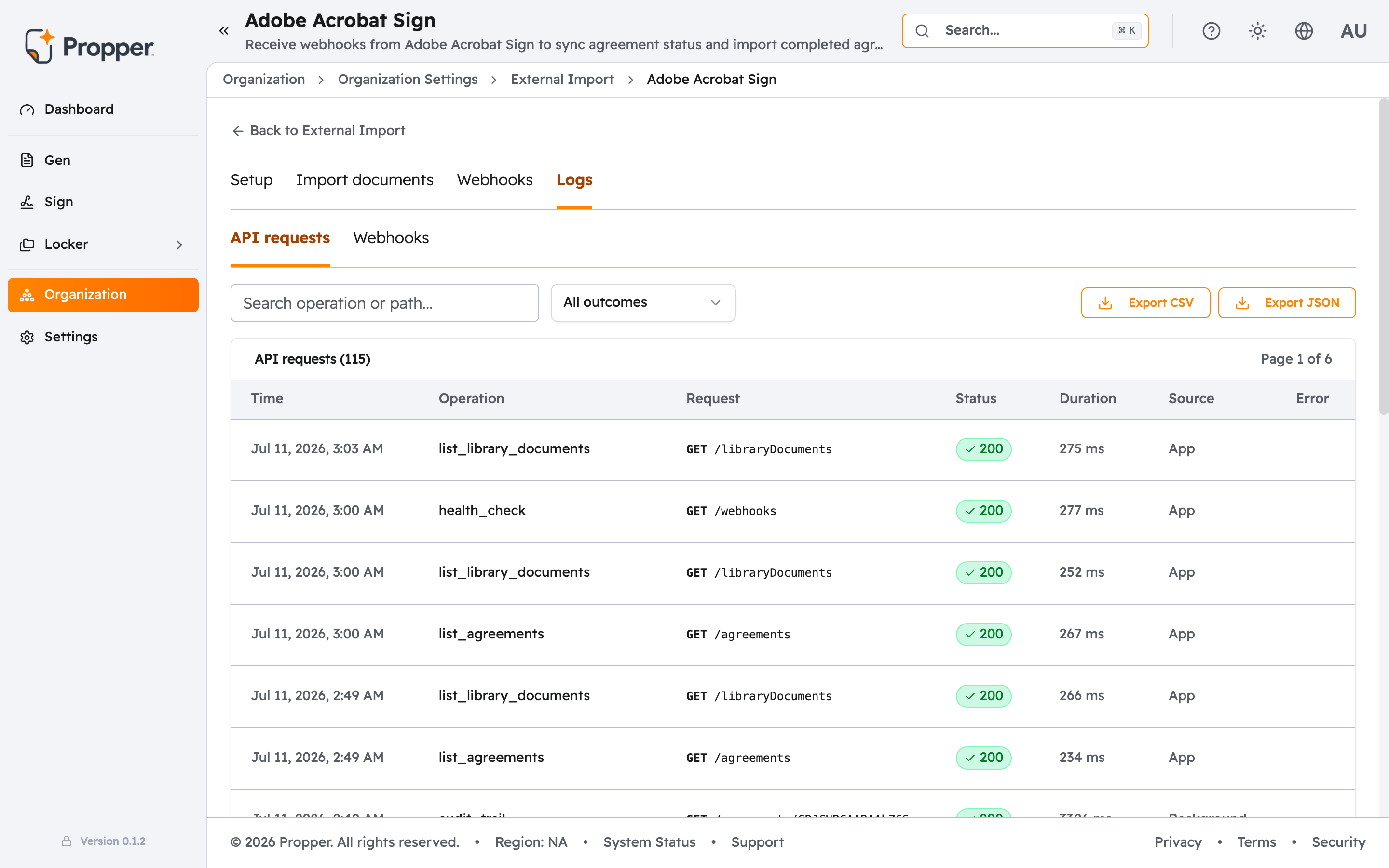
You can filter and search either view, and export what you see with Export CSV or Export JSON. If an import fails, open the failed row for the error message, fix the cause (for example, re-run the health check if the key needs attention), and import again. Already-imported records are skipped, so retrying costs nothing.
- Migrating from Adobe Sign — Move your API integration to Propper.
- Sign Webhooks — Configure outgoing webhooks from Propper Sign.