Viewing Evidence
Evidence records are accessible directly from the Click dashboard. You can search by user, filter by date or outcome, view the full details of any interaction, and download records for sharing with legal or compliance teams.
You need at least a Viewer role to access evidence. → Roles & Permissions
Finding a record
Evidence records are organised under the template they belong to.
- Go to Click → open the relevant Template.
- Select the Sessions tab.
- Filter by date range, outcome (Accepted / Declined / Expired), or user reference.
- Click a session row to open the session detail.
- Select the Evidence tab to view the bundle.
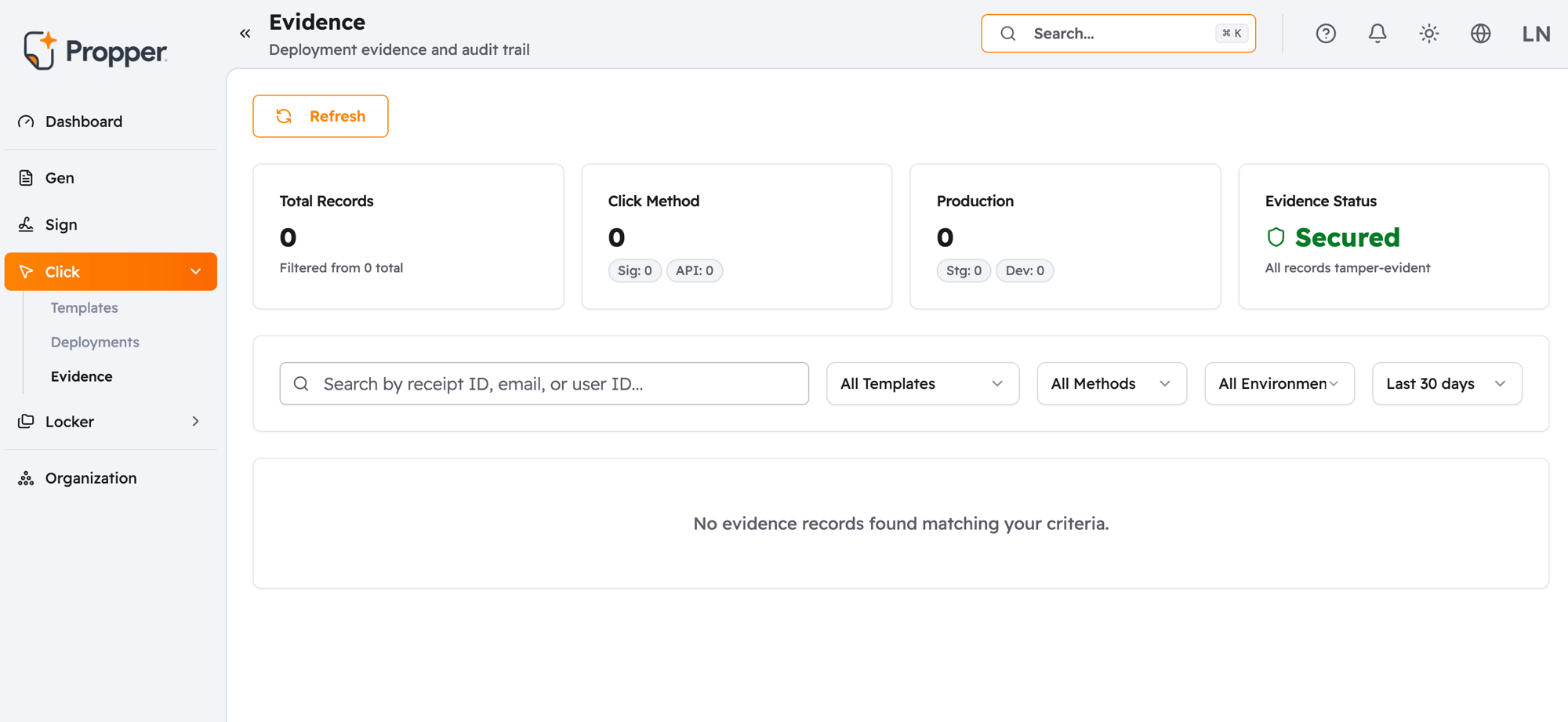
If you know the user's ID, use the search field at the top of the Sessions tab to find all sessions linked to that user across this template. For searches across multiple templates, use the Evidence API.
Reading a bundle
Each evidence record is organised into sections:
| Section | What it shows |
|---|---|
| Summary | Template name, outcome (Accepted / Declined / Expired), timestamp, and user reference |
| User & Context | IP address, browser details, and display language |
| Version Info | The content and policy version of the agreement shown |
| Document Snapshot | A visual preview of the exact agreement the user saw — expand to see the full text |
| Tamper-Evident Seal | Cryptographic details confirming the record is intact and unchanged |
For a full explanation of what each field means and why it matters, see Evidence Bundle.
Screenshot: full Evidence Bundle detail view with each section visible and labelled
Downloading a record
From the evidence detail view, click Download and choose:
- PDF Certificate — a printable summary for sharing with legal or compliance teams, no dashboard access needed to read it
- Full Bundle (.tar.gz) — the complete package: agreement snapshot, receipt file, and PDF certificate
Screenshot: Download dropdown showing the PDF Certificate and Full Bundle options
Downloaded records retain their tamper-evident seals and can be independently verified without dashboard access.
Accessing evidence via API
To retrieve evidence programmatically or connect Click to a compliance tool, use the Evidence API.
Troubleshooting
An Evidence Bundle isn't appearing in the dashboard.
Bundles are generated within a few seconds of acceptance. If one is missing: wait a moment and refresh the page (it doesn't auto-update), verify the onAccept callback fired in your SDK integration (if it didn't, no acceptance was recorded), and check the session status — if it shows as Expired rather than Accepted, no bundle is generated. If a bundle is still missing after 60 seconds and the acceptance was recorded, contact Propper support with the receipt ID from your onAccept callback.
The PDF Certificate is missing from an Evidence Bundle. PDF generation can occasionally lag behind the bundle itself. Wait up to 60 seconds after acceptance and refresh. If it's still missing, check that certificate generation hasn't been disabled under Template → Settings → Evidence Options.
I can't find the right record when I search.
There are two different identifiers returned by the SDK's onAccept callback: the receipt ID (for cross-referencing from your own database) and the evidence bundle ID (for looking up the bundle in Click → Evidence). Make sure you're searching with the right one.