Use Propper in Salesforce
Once an administrator has set up Propper for Salesforce, you can send agreements for signature and generate documents directly from a record. You need the Propper_User permission set, or Propper_Admin.
Send a document for signature
- Open a record, for example an Opportunity or an Account.
- Click Send for Signature.
- Choose a Send Configuration or template, then confirm the recipients. Propper maps recipients from the record, and you can adjust them.
- Send. Each recipient receives an email invitation to sign.
The agreement and its status are tracked on the record, so you can see when it has been viewed, signed, or completed.
Generate a document
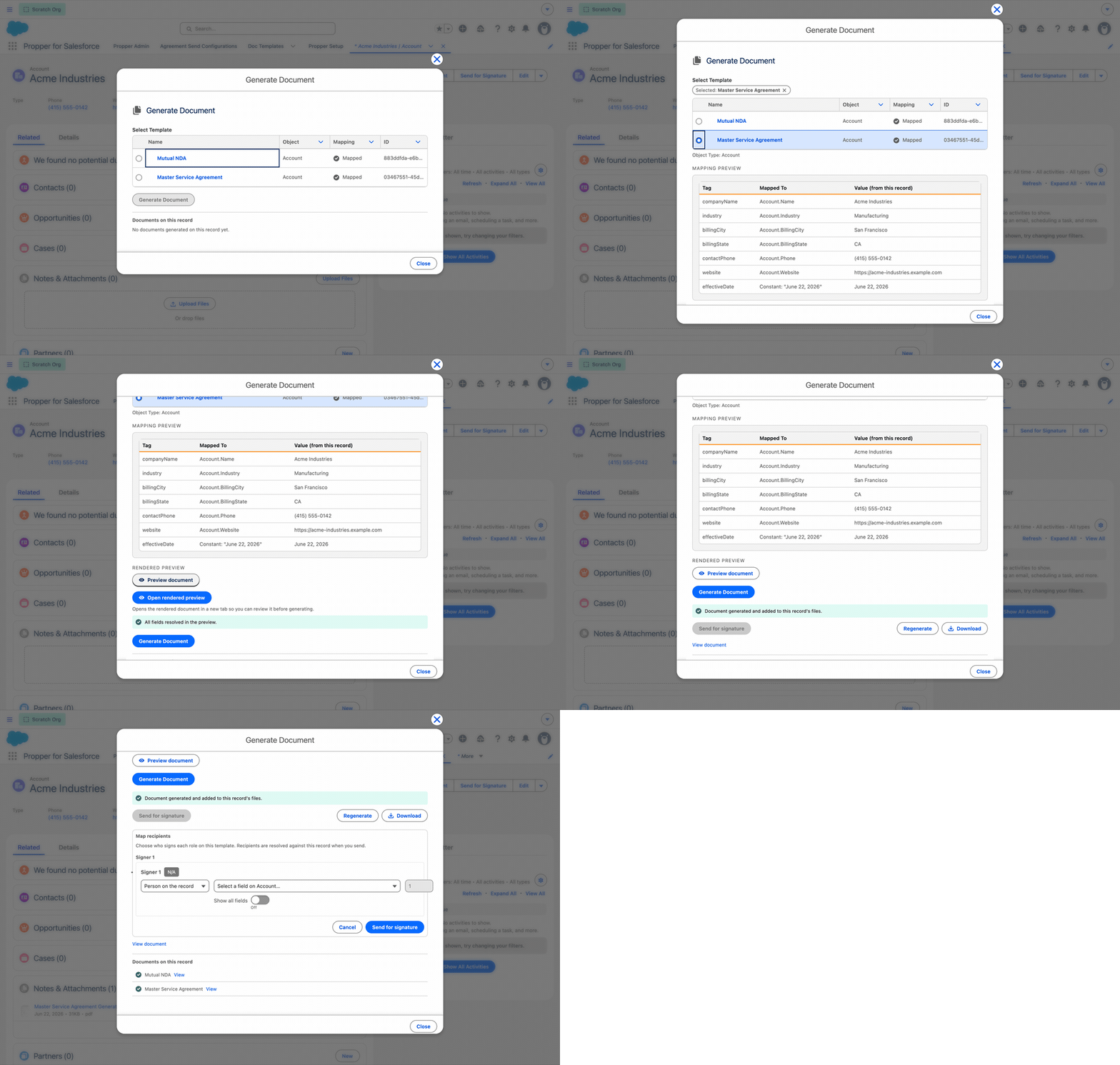
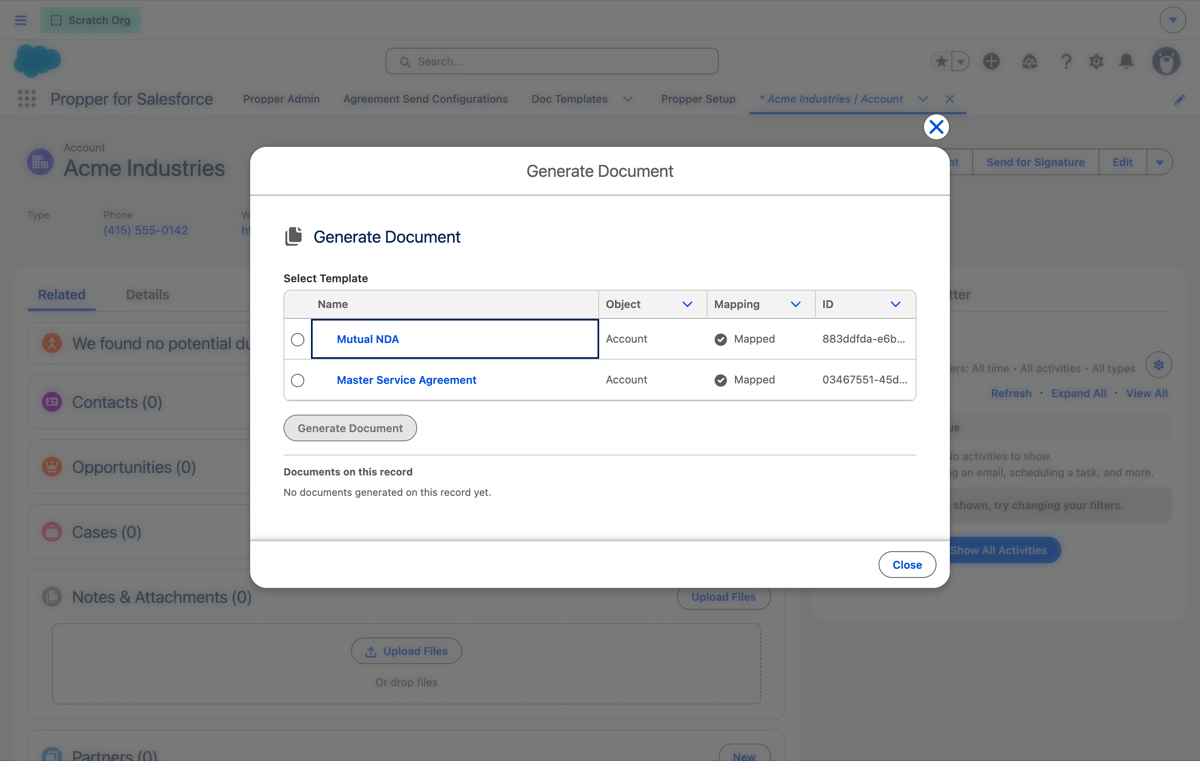
- Open a record and click Generate Document.
- Choose a template. The picker lists the templates mapped to that object.
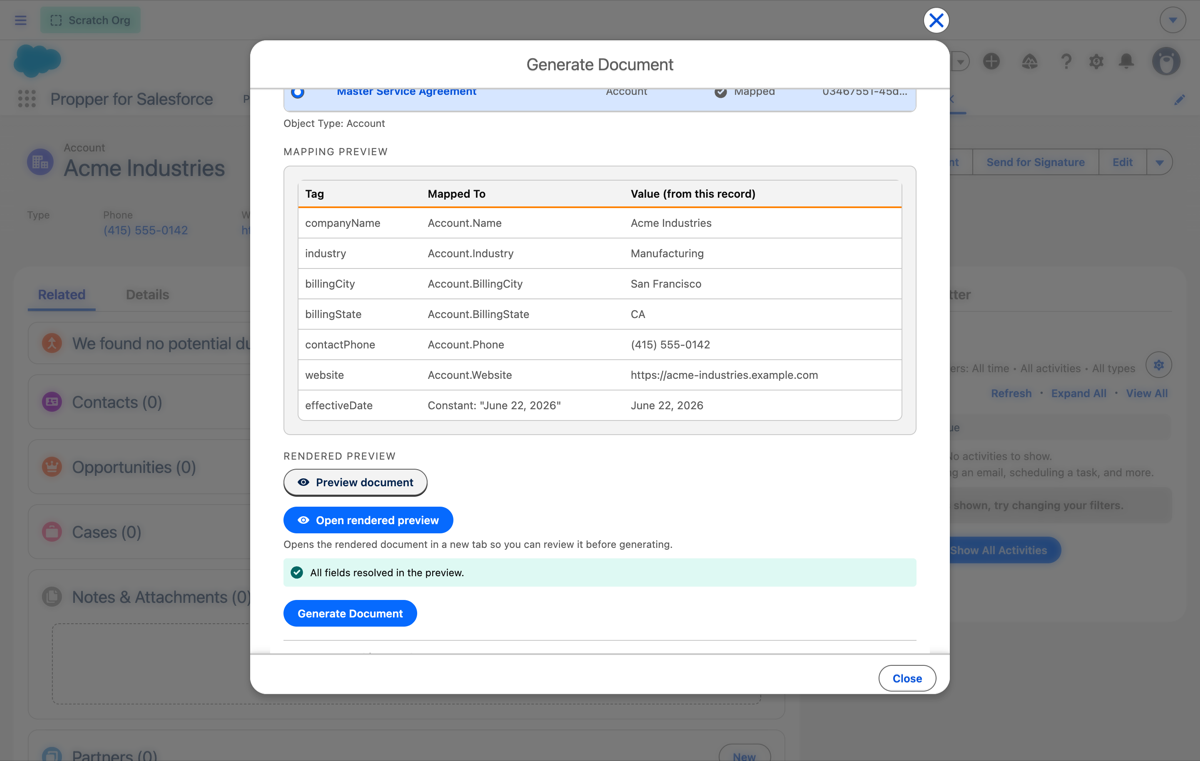
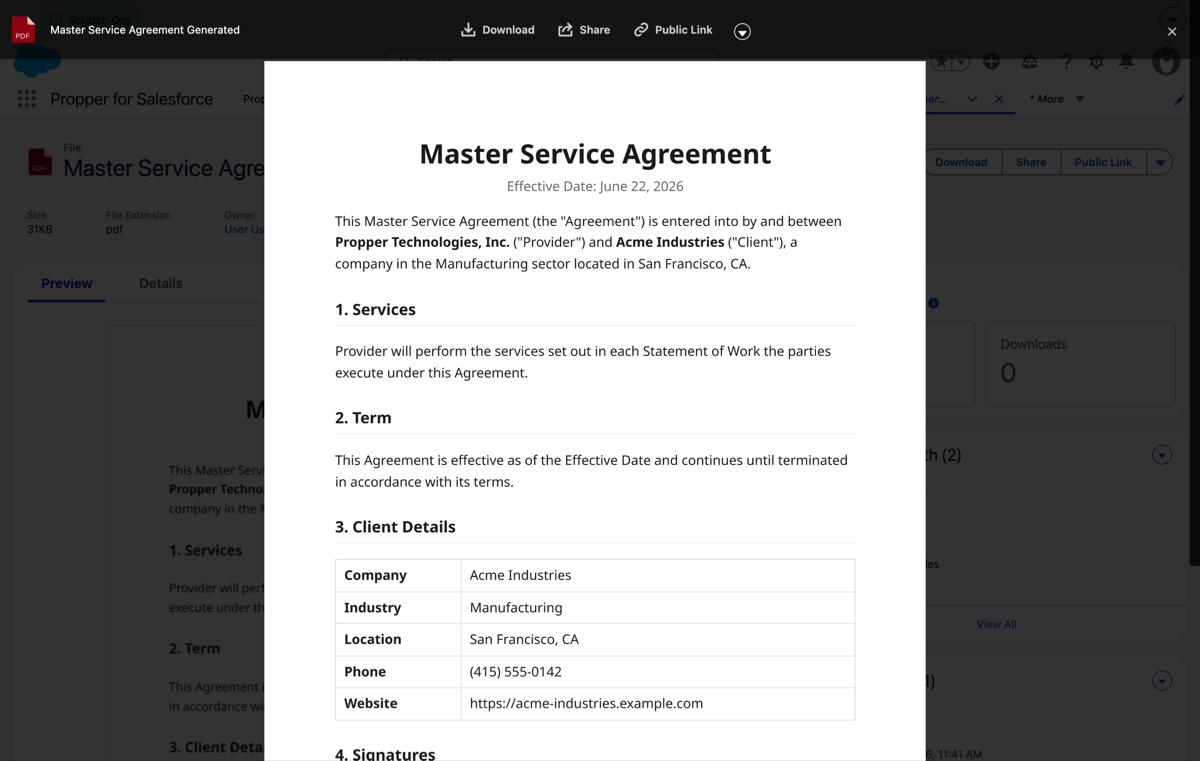
- Preview the rendered document, with the record's data merged in.
- Generate. The finished PDF is saved to the record's Files.
If the template includes signature fields, you can send the generated document for signature in the same step.
Track status on the record
When your administrator adds the Propper component to a record page, you can see the status of every agreement tied to that record, including who has signed and what is still outstanding.
Where signed documents go
Completed documents are saved to the record's Files, alongside any documents you generate. The completion record includes the signing details captured during the signature process.
Need help?
If an action does not appear, ask your administrator to confirm your permission sets and that the Propper component is added to your record pages. For setup details, see the setup and administration guide.