Status Tracking
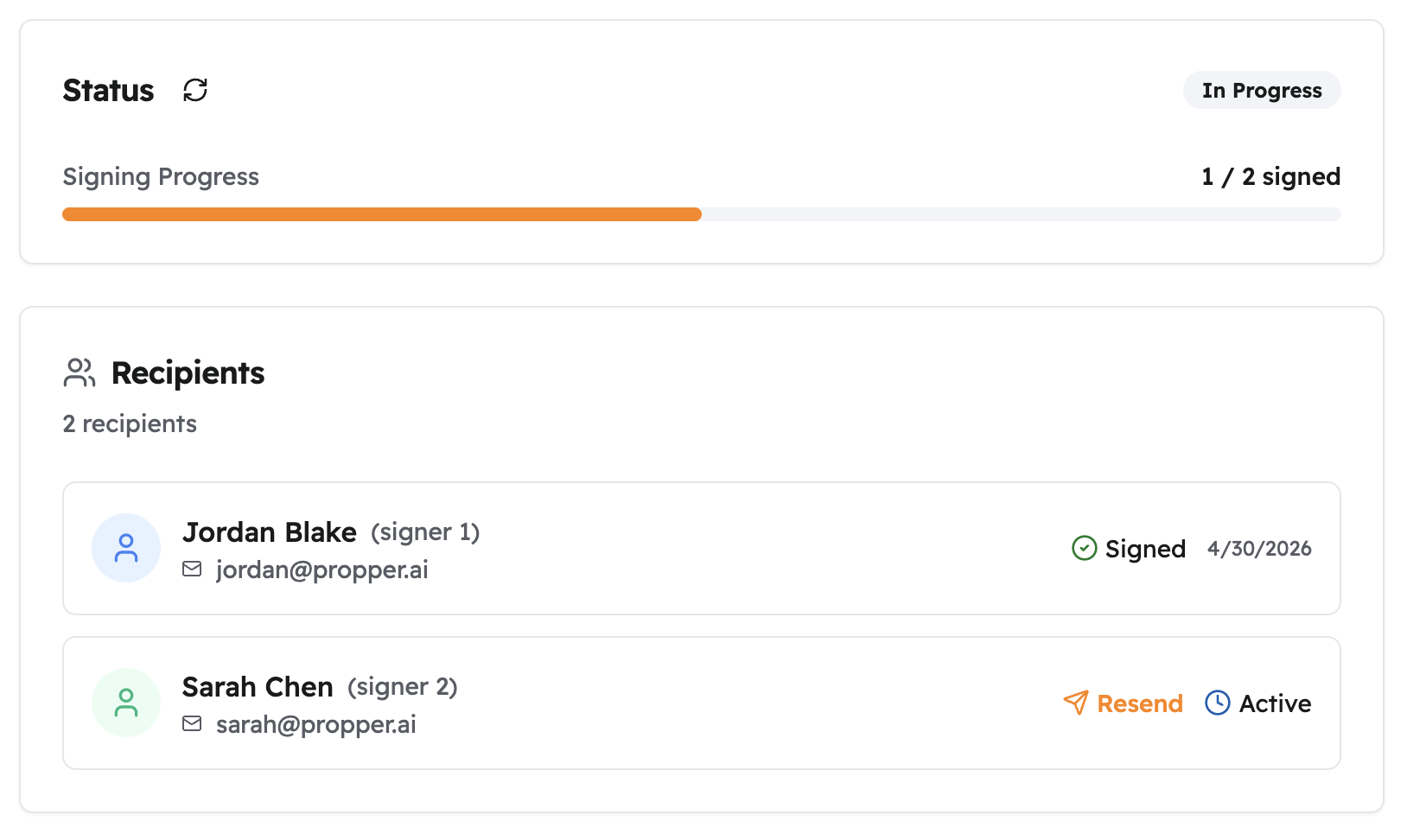
After you send an agreement, you can follow its progress in real time from Sign > Agreements. You can see who has signed, who hasn't, send a nudge to anyone who's taking too long, and download completed documents, all from the same place.
Agreement Statuses
Each agreement shows one of these statuses:
| Status | What it means |
|---|---|
| Created | Draft, not yet sent |
| Sent | Invitation emails are on their way |
| Delivered | At least one recipient has opened their invitation email |
| In Progress | At least one recipient has begun signing |
| Completed | Everyone has signed, the document is finalized |
| Declined | A recipient refused to sign |
| Voided | You canceled the agreement |
| Expired | The signing deadline passed before everyone finished |
Completed, Declined, Voided, and Expired agreements are final, they can't be reactivated. If you need to restart a Voided or Declined agreement, create a new one.
Recipient Statuses
Click into any agreement to see where each individual recipient stands:
| Status | What it means |
|---|---|
| Pending | Waiting for their turn in a sequential signing order |
| Active | Has opened and is working through the document |
| Signed | Completed all required tags and submitted |
| Declined | Refused to sign, this moves the whole agreement to Declined |
| Viewed | Has seen the document (applies to copy recipients) |
When one recipient declines in a sequential agreement, all remaining recipients are notified that the agreement has been canceled. Void the agreement and send a corrected version if needed.
The Agreements Dashboard
Go to Sign > Agreements to see all your sent agreements. Each row shows the status, how many recipients have signed, and when activity last occurred.

Filtering the list:
- By status (Completed, In Progress, Declined, etc.)
- By date sent or last activity
- By recipient name or email
- By agreement or document name
Quick filters make it easy to find what needs attention:
- Needs Attention, agreements sitting without recent activity
- Expiring Soon, approaching their deadline (→ extend it before it passes)
- Recently Completed, finished documents ready to download
Click any agreement to open its detail page, where you can see per-recipient status, the full activity timeline, and download options.
Sending Reminders
If someone hasn't signed yet, you can resend their notification directly from the agreement detail page. Open the agreement, find the recipient row, and click Resend. The signing email (or SMS, if that's how the agreement was sent) is delivered immediately — no confirmation step.

Reminders can also be set up to go out automatically on a schedule when you create the agreement. → See Notifications & Reminders for how to configure automatic reminders and expiration deadlines.
Troubleshooting
Status isn't updating, Refresh the page. Status changes are real-time, but brief delays of a minute or two can occur during high activity.
Recipient says they signed but their status still shows Active, They may not have clicked the final Submit button. Partially completed agreements don't register as signed. Ask them to return to the link and confirm they see a completion screen.
Agreement shows an unexpected status, Wait a moment and refresh. If it still looks wrong, contact support with the agreement ID.
Related Topics
- Notifications & Reminders: set up automatic reminders and deadlines
- Voiding Agreements: cancel an agreement in progress
- Downloading: get the signed documents once complete
- Audit Trail: the full history of every action on an agreement