Notifications & Reminders
Once you send an agreement, Propper handles the follow-up automatically. You can set reminders to nudge recipients who haven't signed yet, set a deadline so agreements don't sit open indefinitely, and choose which events trigger an email to you.
Reminders
Automatic reminders re-send the signing invitation to any recipient who hasn't acted yet. You set how soon the first reminder goes out and how often to repeat it.
Reminders are configured in the final Send step of the sending wizard, in the Notifications panel on the right sidebar.
To configure reminders:
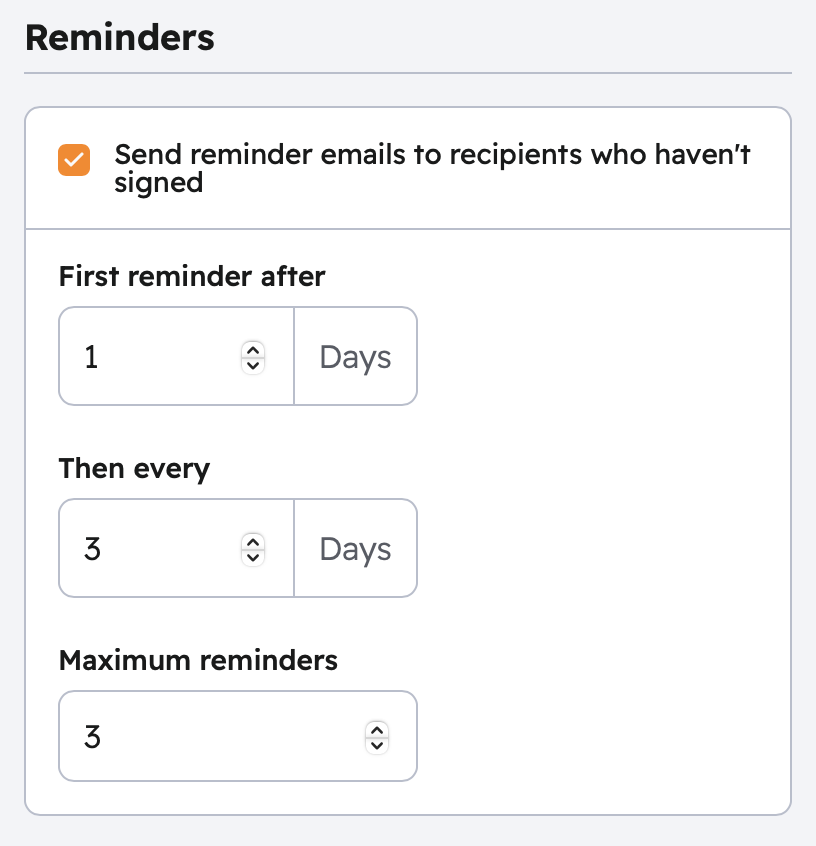
- In the Send step, find the Reminders section in the right panel.
- Toggle Send reminder emails to recipients who haven't signed on.
- Set First reminder after — how many days after sending before the first nudge goes out.
- Set Then every — how many days between follow-up reminders.
- Set Maximum reminders — how many times to remind before stopping.
Default settings: First reminder after 1 day, then every 3 days, up to 3 reminders total.
Timing guidance:
- Urgent agreements: first reminder after 1 day, then every 2 days
- Standard agreements: first reminder after 3 days, then every 3 days
- Low-priority or long-term: first reminder after 5 days, then every 7 days
Reminders stop automatically when the recipient completes the agreement, or when the agreement is voided or expires.
Expiration
An expiration date sets a deadline for the agreement. When the deadline passes, the signing link becomes invalid and no more signatures can be collected.
Expiration is configured in the final Send step alongside reminders, in the same Notifications panel.
To set an expiration:
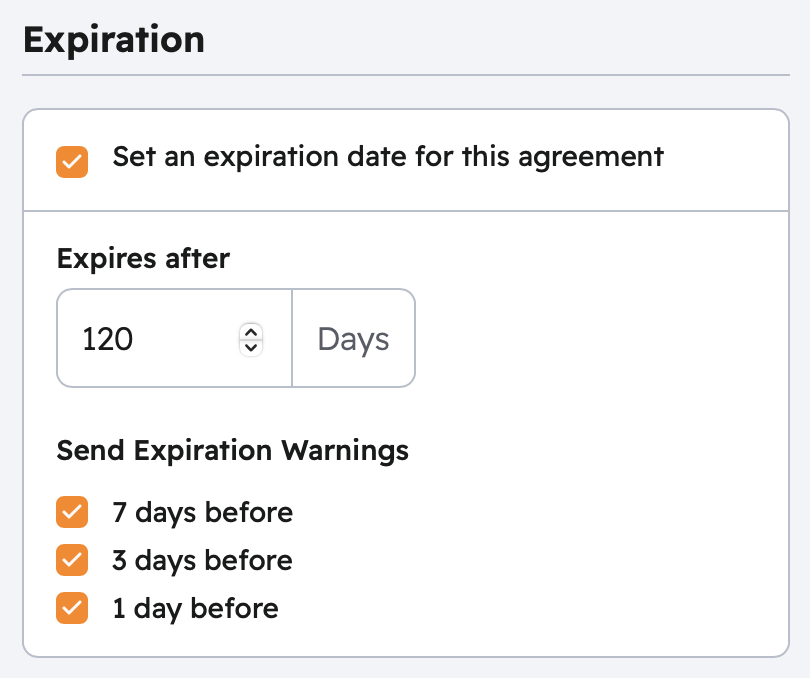
- In the Send step, find the Expiration section in the right panel.
- Toggle Set an expiration date for this agreement on.
- Set Expires after — the number of days from the send date before the signing link becomes invalid.
- Under Send Expiration Warnings, check which intervals you want warning emails sent — 7 days before, 3 days before, and/or 1 day before expiration.
After an agreement expires:
- The signing link becomes invalid
- Partially completed documents can still be downloaded
- You can extend the deadline: open the agreement and click Extend Deadline → See Status Tracking
An expired agreement can be extended. A voided agreement is permanently closed and cannot be extended.
Recommended expiration periods by agreement type:
| Agreement type | Recommended expiration |
|---|---|
| HR onboarding documents | 7–14 days |
| Sales contracts | 14–30 days |
| Routine approvals | 5–7 days |
| Compliance acknowledgments | 14 days |
Status Notifications (for You)
Propper emails you when key events happen on your agreements:
| Event | Email sent |
|---|---|
| Recipient views the agreement | Yes |
| Recipient signs | Yes |
| Agreement fully completed | Yes |
| Recipient declines | Yes |
| Delivery failure | Yes |
To adjust which events trigger emails to you, go to Settings > Notifications > Sender Preferences.
Custom Invitation Message
When sending an agreement, you can add a personal message that appears in the signing invitation email. Keep it brief and professional, all recipients on the agreement can see it.
Troubleshooting
Reminders not sending, Verify Automatic Reminders is enabled on the agreement and that the recipient hasn't already signed or that the agreement hasn't expired or been voided.
Recipients not receiving emails, Ask them to check their spam folder. If it persists, their IT team may need to allow emails from notifications@mail.propper.ai.
Too many notifications, Increase the reminder interval, or turn off "Viewed" notifications in your sender preferences if you'd rather check the Agreements list manually.
Related Articles
- Creating Agreements: configure notifications when you send
- Status Tracking: monitor agreement progress
- Audit Trail: view the full notification and action history for any agreement