Signing order

Signing order controls when each recipient receives the agreement. By default, all recipients receive the agreement at the same time. When you enable signing order, you assign each recipient a number that determines their position in the routing sequence.

Routing modes

Propper Sign supports three routing modes depending on how you assign order numbers to your recipients.

Parallel (default)

All recipients receive the agreement simultaneously. No one waits for anyone else. Use this when the order in which recipients sign does not matter.

Sequential

Recipients receive the agreement one at a time, in order. Each recipient must complete their action before the next recipient is notified.

Mixed

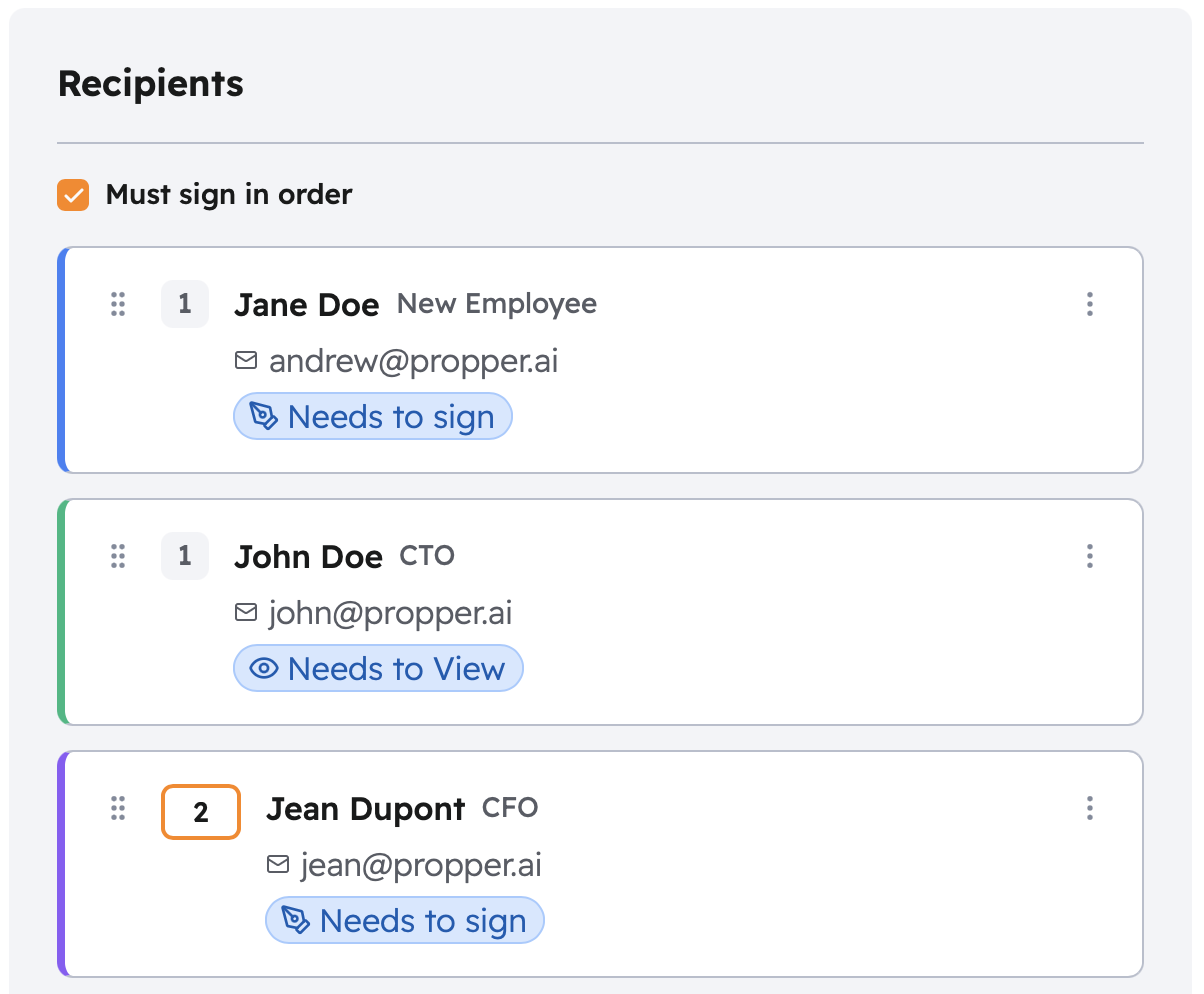
Mixed routing is a pattern you create within sequential mode by assigning the same order number to multiple recipients. Recipients with the same order number form a parallel group. Groups with different order numbers proceed sequentially. All recipients in a group must complete their action before the next group is notified.

How to configure signing order

1. Enable signing order

When adding or editing recipients on an agreement, toggle Enable Signing Order to on. By default, signing order is disabled and all recipients receive the agreement in parallel.

Coming Soon

Screenshot: signing-order-toggle — the signing order toggle in the recipient configuration panel

2. Assign order numbers

Once signing order is enabled, each recipient displays an order number field. Set a number for each recipient to define their position in the sequence.

  • Recipients with the same number receive the agreement at the same time (parallel within that step).
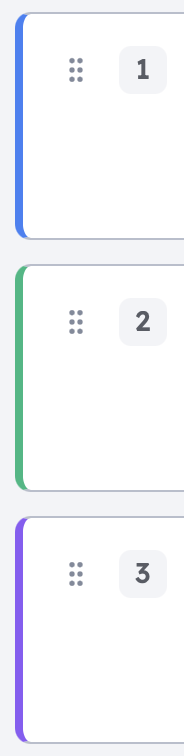
  • Recipients with different numbers receive the agreement in numerical order (sequential between steps).
  • Numbers do not need to be consecutive — you can use 1, 2, 3 or 10, 20, 30.
Coming Soon

Screenshot: recipient-order-numbers — recipient list with order number inputs visible

3. Review the routing sequence

After assigning order numbers, review the recipient list to confirm the routing sequence is correct before sending.

Routing groups

When you send an agreement with signing order enabled, Propper Sign creates a routing group for each unique order number. Each group progresses through three states:

StatusMeaning
PendingWaiting for the previous group to complete
ActiveRecipients in this group have been notified and can sign
CompleteAll recipients in this group have completed their action

Only the currently active routing group's recipients can sign. Recipients in pending groups receive no notification until their group becomes active.

Locking signing order

Once an agreement is sent, you can prevent changes to the signing order by enabling Lock Signing Order. When signing order is locked, the routing sequence cannot be reordered.

This is useful when the signing order has legal or compliance significance and must not be altered after the agreement enters circulation.

What happens without signing order

When signing order is not enabled, the agreement type is set to parallel and all recipients receive their signing invitation at the same time. There is no routing sequence — any recipient can complete their action at any time, in any order.

This is the recommended approach for most agreements where the order of completion is not important.

Example: multi-step approval workflow

Consider an agreement that requires a manager to review it first, then two departments to sign in parallel, and finally an executive to countersign.

RecipientRoleOrder
ManagerApprover1
Finance LeadSigner2
Legal CounselSigner2
ExecutiveSigner3

How the routing progresses:

  1. The agreement is sent. Only the Manager (order 1) receives a notification. Finance Lead, Legal Counsel, and Executive are in pending groups.
  2. Once the Manager completes their action, the order-2 group becomes active. Finance Lead and Legal Counsel both receive notifications simultaneously.
  3. After both Finance Lead and Legal Counsel complete their actions, the order-3 group becomes active. The Executive receives a notification and countersigns.
  4. When the Executive completes their action, the agreement is fully executed.