Deploying Agreements
Once you have a published template, you deploy it to make it live on your website. A deployment connects your agreement to a specific page (or your entire site) and controls when it appears to users.
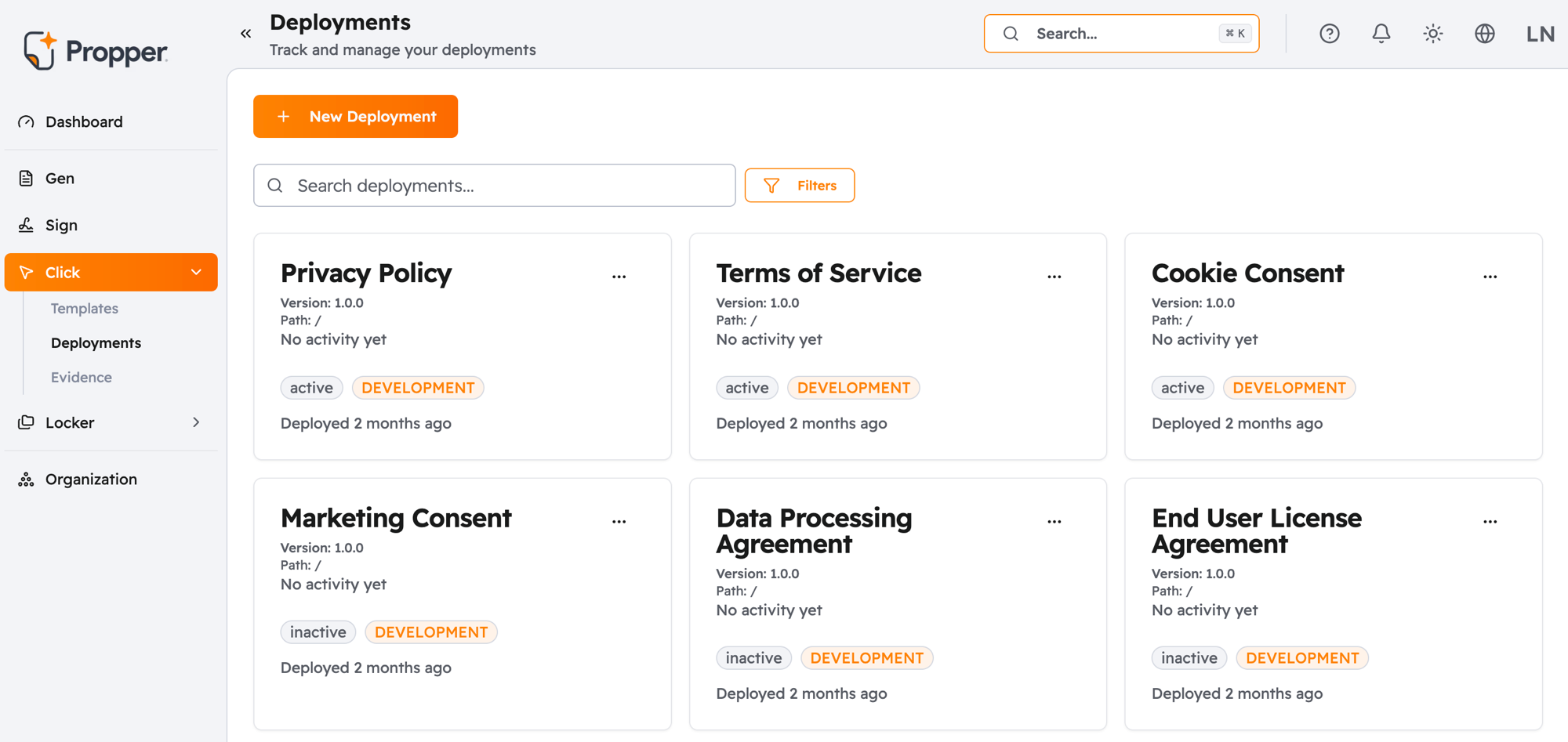
Screenshot: click-deployment-activate, screenshot of the Active toggle being switched on for a deployment in the list, with the status changing from inactive to active
The deployment workflow
Every deployment follows the same steps:
- Create — Choose a published template, specify where on your site to show it, and select an environment. The deployment is saved but not yet live.
- Activate — Turn the deployment on. Click begins serving the agreement to users at that location immediately.
- Monitor — Views, acceptances, and declines are tracked automatically. No setup required.
- Update — Swap the template, change settings, or deactivate at any time without touching your code.
Only one deployment can be active on the same page at a time. If you activate a new deployment where one already exists, the previous one is automatically deactivated.
In this section
| Page | What you'll learn |
|---|---|
| Environments | How to use Production, Staging, and Development safely |
| Domain & Path Configuration | Where and how to point your deployment on your site |
| A/B Testing | Testing two versions of an agreement side by side |
| Scheduled Deployments | Automatically going live or expiring at a set time |
Troubleshooting
Activating a new deployment deactivated my previous one. This is expected. Only one deployment can be active per domain, path, and environment combination. Activating a new deployment at the same location automatically deactivates the previous one. If you need both to run simultaneously, use different paths — or use A/B Testing to run two variants of the same agreement side by side.
Start here: Environments →