Templates
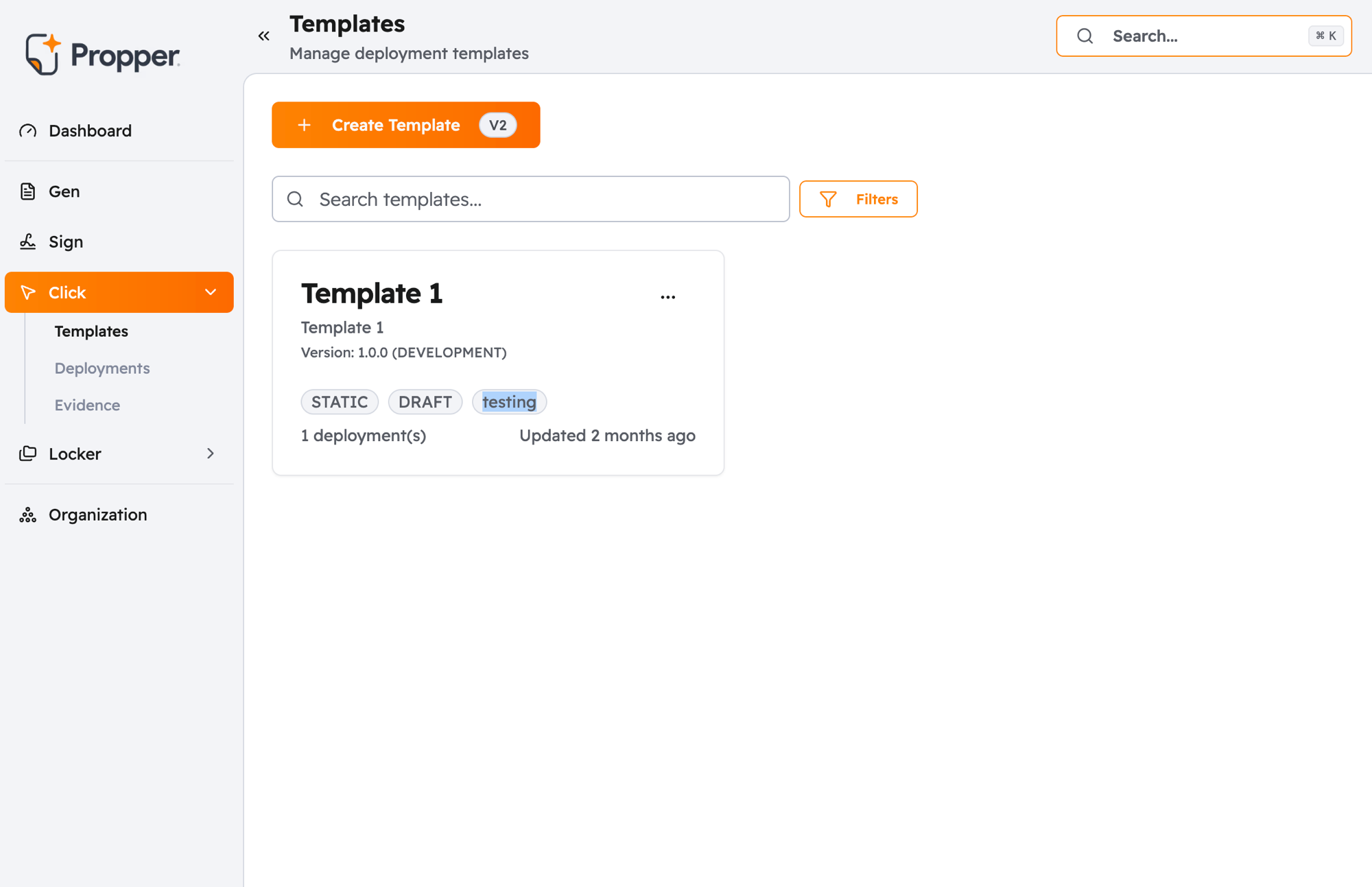
A template is the starting point for every agreement you present to users in Click. It holds your agreement text, controls how users interact with it, and defines what gets captured in the compliance record. Once a template is published, you can deploy it to any number of pages or environments without rebuilding it each time.
Choosing a Template Type
Click has three template types. The right one depends on what kind of agreement you need:
Same terms for every user Use a Static template. The content is fixed and shown identically to all users. Best for Terms of Service, Privacy Policies, and general notices.
Personalized terms per user (coming soon) Use a Generated template. You write the agreement once with placeholders, and Click fills in each user's specific details — like their name or company — when they open it. Best for NDAs and custom contracts.
Category-based consent (coming soon) Use a Consent Management template. Instead of one agreement, users see individual toggles for each data category and can opt in or out of each separately. Best for GDPR cookie banners and marketing preference centers.
Only Static templates can currently be created. Generated and Consent Management template types are in development and not yet available.
You cannot change a template's type after it is created. If you choose the wrong type, delete the draft and start a new one.
Template States
Every template moves through three states:
- Draft: you are still building it. It cannot be shown to users yet.
- Published: the content is locked and ready to deploy. You cannot edit a published template directly — any changes require creating a new version.
- Archived: no longer in use. Cannot be deployed, but its acceptance records remain accessible.
See Version Management for how to update a published template.
In This Section
- Creating Templates: choose a type, write your content, and publish your first template
- Template Content: write and format your agreement text, including how to use personalization placeholders for Generated templates
- Content Settings: require a checkbox, scroll-to-bottom, or a confirmation step before users can accept
- Appearance & Branding: match your brand colors, fonts, and button labels
- Template Variables: define personalization fields for Generated templates
- Version Management: how to update a published template and what is coming
- Import & Export: back up templates, copy them across environments, or clone them
Next Steps
- Deploy a template: connect your published template to a page in your product
- Use case: Terms of Service: end-to-end example with a Static template
- Use case: Cookie Consent: end-to-end example with a Consent template
- Use case: NDA: end-to-end example with a Generated template