Authentication
Authentication verifies a signer's identity before they can access and sign documents. Propper Sign supports several authentication methods — choose based on the security requirements of the agreement and the convenience needs of your recipients.
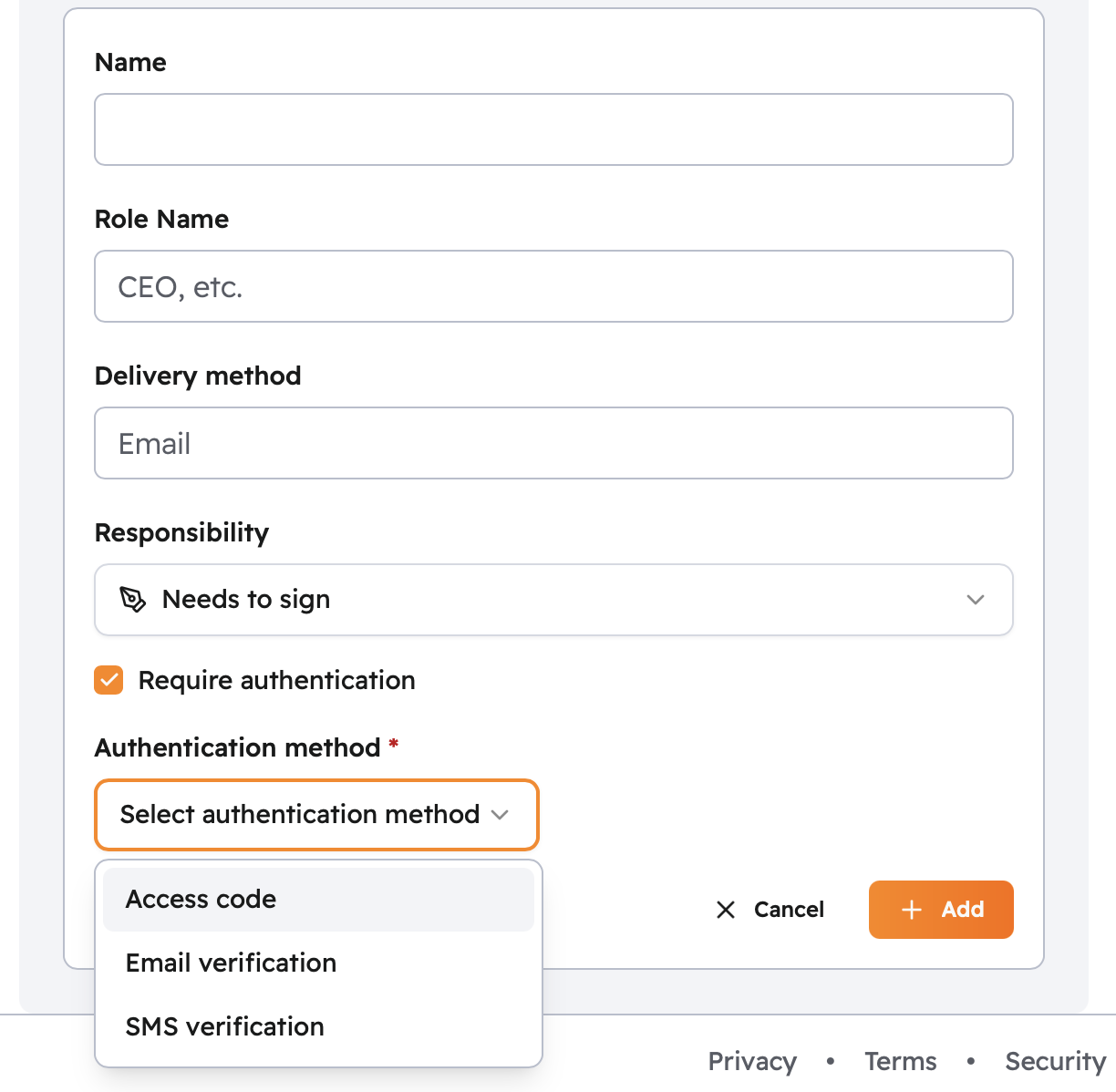
Screenshot: authentication-methods-overview — the authentication configuration panel in the agreement editor
Authentication methods
| Method | Security level | How it works |
|---|---|---|
| None | Basic | Email link only — anyone with the link can access |
| Email OTP | Standard | One-time code sent to recipient's email address |
| SMS OTP | Enhanced | One-time code sent via text message |
| Access Code | Enhanced | Shared code you provide separately to the recipient |
| TOTP | Enhanced | Time-based code from an authenticator app |
| Identity Provider | Maximum | Third-party identity verification (OneID, ID.me, Clear) |
None (email link only)
The default for most agreements. The signing link is unique to the recipient and agreement — only someone with access to that specific link can sign.
Security: The link itself acts as the credential. Email account security determines effective protection.
Use for: Standard business documents, internal agreements, low-risk transactions where recipients are known and trusted.
Email OTP
Sends a one-time passcode to the recipient's email address. The recipient must enter the code before accessing the signing session.
Security: Requires access to the recipient's email inbox in addition to the signing link.
Use for: Documents where you want to confirm the recipient has active access to their email address at the time of signing.
How it works:
- Recipient clicks the signing link.
- A one-time code is sent to their email address.
- Recipient enters the code to access the document.
SMS OTP
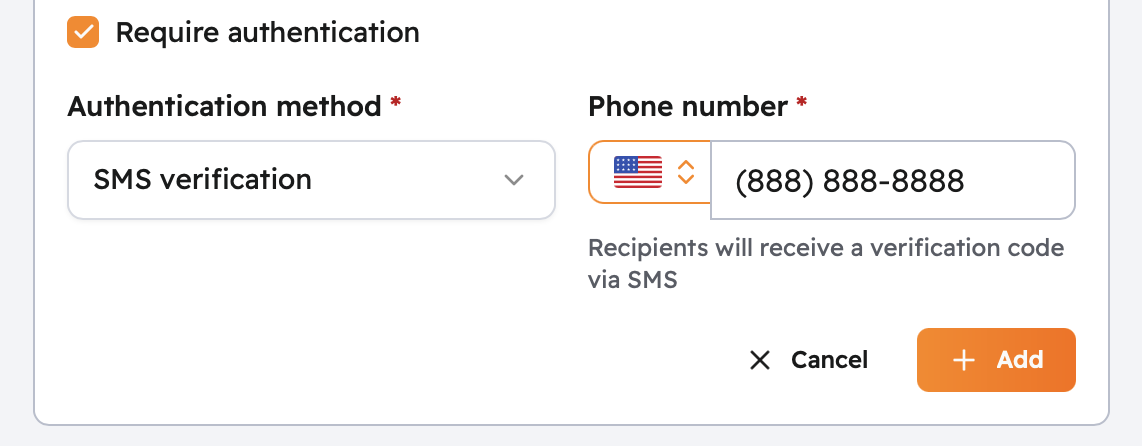
Sends a one-time code to the recipient's mobile phone via text message. Requires the recipient's mobile number when creating the agreement.
Security: Requires both the signing link and physical access to the recipient's mobile device.
Use for: Financial services, healthcare, real estate, and other transactions where device-level verification adds meaningful assurance.
Setup:
- Select SMS as the authentication method when adding the recipient.
- Enter the recipient's mobile number with country code.
Screenshot: sms-verification-flow — the SMS code entry screen in the signing interface
How it works:
- Recipient clicks the signing link.
- A 6-digit code is sent to their mobile number.
- The recipient enters the code to access the document.
Access code
Requires recipients to enter a code you provide to them separately — for example, by phone, in-person, or through another communication channel.
Security: Two-factor — signing link plus a separately communicated code. Effective because the code travels through a different channel than the signing link.
Use for: Moderate-value transactions, adding verification without requiring a mobile number, scenarios where you control the channel for sharing the code.
Setup:
- Select Access Code when adding the recipient.
- Enter a code (6–10 characters recommended).
- Share the code with the recipient through a channel separate from the signing invitation.
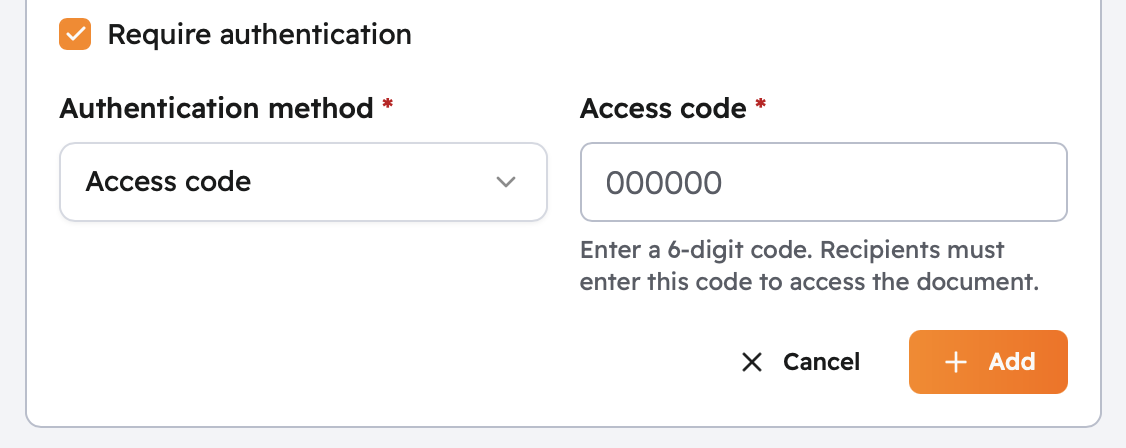
Screenshot: access-code-setup — access code configuration in the recipient form
Best practices:
- Use non-obvious codes — avoid birthdays, simple number sequences, or the recipient's name
- Share the code through a different channel than the signing email (for example, by phone)
- Use a unique code per recipient when multiple signers are on the same agreement
Failed attempts: Access codes allow a maximum of 5 attempts. After 5 incorrect entries the recipient is locked out for 15 minutes. The sender receives a notification when a lockout occurs.
TOTP (authenticator app)
Requires recipients to enter a time-based one-time passcode from an authenticator app (such as Google Authenticator, Authy, or similar TOTP-compatible apps).
Security: Requires both the signing link and access to the recipient's authenticator app at the time of signing.
Use for: High-security agreements where recipients already use TOTP authentication in their own workflows.
Identity provider
Verifies the recipient's identity through a third-party identity verification service. Supported providers include OneID, ID.me, and Clear.
Security: Maximum — identity is verified against authoritative identity records, not just account access.
Use for: High-value contracts, regulated industries, legal documents, or compliance requirements (KYC/AML) where proving a recipient's real-world identity is required.
How it works:
- Recipient clicks the signing link.
- They are redirected to the identity provider's verification flow.
- After successful identity verification, they are returned to the signing session.
Authentication by signing method
Email signing
All authentication methods are available for email-based signing.
Embedded signing
Your application authenticates users before generating a signing URL — that authentication is the primary trust signal. You can optionally add SMS OTP, Access Code, or TOTP as an additional verification layer using the agreement's recipient authentication settings.
In-person signing
The host verifies the signer's physical presence and identity by default. You can require an additional Access Code or SMS OTP for added assurance.
Failed authentication
Email OTP and SMS OTP
A limited number of attempts are permitted before the code expires. Recipients can request a new code if theirs has expired.
Access code
Maximum 5 attempts before a 15-minute lockout. The sender receives a notification when lockout occurs. After the lockout period, the recipient may try again.
TOTP
Codes are time-based and expire after the standard TOTP window. The recipient should ensure their device clock is synchronized.
Identity provider
Failure behavior depends on the identity provider. If verification fails, the recipient is typically returned to the signing link entry point with an error message. The sender is notified of the failure.
When authentication fails, the sender receives a notification containing failure details. The sender can contact the recipient, unlock their access where applicable, or void and resend the agreement if necessary.
Next steps
- Learn how to send agreements with authentication configured
- Understand the signature types recipients use after authenticating
- Review the audit trail to see authentication events recorded per signing session
Related topics
- Email signing — Standard email-based signing workflow
- Embedded signing — In-app signing with your own authentication layer
- In-person signing — Host-facilitated signing with optional verification