Core Concepts
Click is organized around four building blocks: Templates, Deployments, Sessions, and Evidence. Each plays a specific role in the journey from writing an agreement to proving a user accepted it.
Understanding how they connect will help you set up Click confidently and make sense of what you see in the dashboard.
Templates
A template is where you create and manage your agreement. Think of it as the source document — the text users will read, the button labels they will see, and the rules that govern how the agreement behaves.
When you create a template, you choose a type depending on what kind of agreement you need:
- Static Clickwrap: the same content shown to every user, every time. Best for Terms of Service, Privacy Policies, and standard notices.
- Generated Clickwrap (coming soon): content personalized for each user by filling in variables (like their name or contract start date). Best for NDAs and custom contracts.
- Consent Management (coming soon): instead of one agreement, users see a set of categories they can individually opt into or out of. Best for GDPR cookie banners and marketing preferences.
Only Static Clickwrap is available when creating a new template. Generated Clickwrap and Consent Management are in development and not yet accessible.
See Templates for how to build and configure each type.
Screenshot: New template screen showing the three template type options with brief descriptions
Versions
Every time you publish a change to a template, Click saves it as a new version. The previous version's record is preserved exactly as it was — so if you ever need to show what users agreed to at a specific point in time, that information is still there.
Click tracks two version numbers separately: one for the content (text and appearance) and one for the policy (the underlying terms). This distinction matters when a change is significant enough to require existing users to accept again. See Version Management for how this works.
Template States
A template moves through three states before and after it goes live:
- Draft: you are still editing it. It cannot be deployed yet.
- Published: content is locked and ready to deploy. You cannot edit a published template — any changes create a new version.
- Archived: no longer in active use. Cannot be deployed, but its acceptance records remain accessible.
Screenshot: Template editor showing the Publish button and version history panel
Deployments
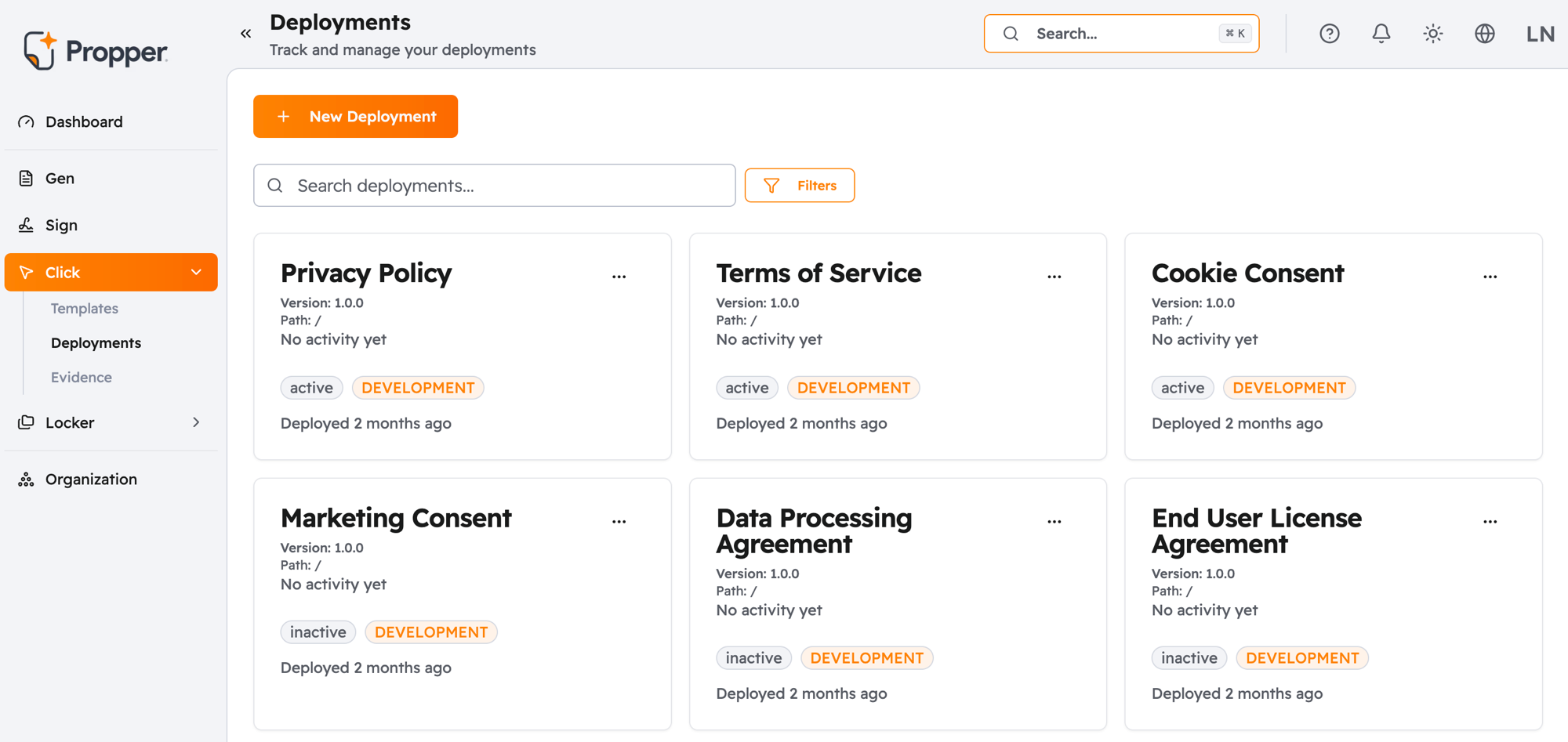
A deployment is the connection between a published template and a specific location in your product. It answers: where should this agreement appear, and how?
When you create a deployment, you specify:
- Where it goes: the domain and URL path in your application
- Where it applies: the domain and path are recorded for allowlisting and reporting; your backend addresses the deployment by its ID
- Which environment: Development, Staging, or Production. These are fully isolated — testing in Development or Staging never affects live data or acceptance records
A deployment starts inactive. It only goes live when you activate it, which gives your team time to test before real users see anything.
Only one deployment can be active per location at a time. Activating a new deployment at the same location automatically deactivates the previous one.
See Deployments for full configuration options, including scheduled deployments and A/B testing.
Sessions
A session is the record Click creates each time a user encounters a deployed agreement. You do not create sessions — Click generates them automatically.
Each session captures who the user was, what they were shown, and what they did. A session ends with one of three outcomes:
- Accepted: the user confirmed the agreement
- Declined: the user rejected it (only possible if your template allows declining)
- Expired: the session window passed before the user responded
Sessions are permanent records once they are complete. They cannot be modified after the fact.
Screenshot: Session detail view showing user reference, timestamp, and outcome badge
Evidence
When a user accepts an agreement, Click automatically generates an evidence bundle — a secure compliance record of that acceptance. You do not need to do anything to trigger this; it happens automatically.
This is the record you would produce if you were ever asked to prove that a user agreed to something. It captures what the user saw, when they saw it, and verification that the content shown has not been altered since.
You can access evidence records from the Evidence section of your dashboard, filter by user or date range, and export them for legal or compliance review.
See Evidence & Compliance for what each bundle contains and how to work with it.
Screenshot: Evidence Bundle detail view showing the certificate preview and Download Certificate button
Next Steps
- Creating Templates: build your first agreement
- Deploying Agreements: go live on your site
- Click API: render and accept from your backend
- Evidence & Compliance: understand your compliance records