Conditional Fields

Show or hide tags based on a recipient's responses. Conditional logic lets you build adaptive agreements that present only the information relevant to each individual recipient, reducing form length and improving clarity.

Coming Soon

Screenshot: Signing interface showing a tag appearing after a recipient selects a dropdown option

How it works

Conditional logic follows an if-then structure: if a recipient selects a specific value in a parent tag, then one or more child tags appear or are hidden.

You configure this in the template editor. The logic runs live during signing — recipients see tags appear or disappear as they make selections.

Example: Employment type

Say you have a contract that includes contractor-specific tags. Rather than showing those tags to all recipients, you can make them conditional:

Parent tagValue selectedChild tags shown
"Employment Type" dropdown"Contractor""Contract End Date", "Hourly Rate"
"Employment Type" dropdown"Full-Time Employee"(child tags hidden)

Recipients who select "Contractor" see the additional tags. Those who select "Full-Time Employee" do not. The agreement adapts to each person's situation.

Common use cases

  • Employment forms — Show visa-related tags only if a recipient selects "Non-citizen authorized to work"
  • Sales contracts — Display financing terms only when the recipient chooses "Financing" as the payment method
  • Insurance agreements — Show pre-existing condition tags only if the recipient answers "Yes" to a medical history question
  • Multi-department agreements — Reveal department-specific sections based on a role selection

Setting up conditional tags

In the template editor

  1. Open your template in the editor
  2. Add a parent tag — this is the tag whose value triggers the condition. Typically a dropdown, radio button, or checkbox
  3. Add the child tags — these are the tags that will show or hide based on the parent's value
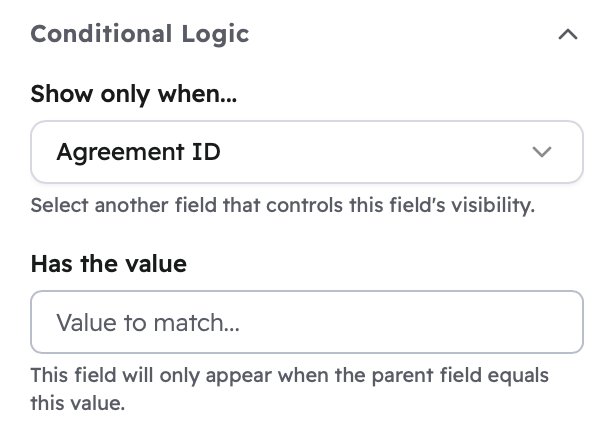
  4. Select a child tag and click Add Condition in the properties panel
  5. Choose the parent tag from the parent field selector
  6. Set the condition value — the specific response that triggers this child tag to appear
  7. Choose the action: Show or Hide
  8. Save the template
Coming Soon

Screenshot: Template editor properties panel showing the conditional logic configuration section with parent field selector and condition value input

Condition value matching

Match typeBehavior
Exact matchTag appears only when value equals "US Citizen" exactly (case-sensitive)
ContainsTag appears when value contains a substring
Empty / not emptyTag appears based on whether the parent has a value
Numeric comparisonsTag appears when a number is greater than, less than, or equal to a threshold

Child tag behavior

  • Child tags are hidden by default until their condition is met
  • A hidden tag cannot be marked as required — if it is hidden, it is treated as optional
  • If a recipient fills in a child tag and then changes the parent value so the child hides, the previously entered value is preserved in the background but not submitted

Supported tag types

Parent tags (triggers)

Tag typeCan be a parent
CheckboxYes — triggers on checked or unchecked
Radio buttonsYes — triggers on a specific option
DropdownYes — triggers on a specific option
TextYes — triggers when field contains a value
SignatureNo

Child tags (conditional)

Tag typeCan be conditional
Text, email, date, numberYes
Checkbox, radio, dropdownYes
Signature / initialsNo — always visible
Signature placement

Place signature tags after all conditional sections. This ensures signers encounter required tags before reaching the signature, regardless of which conditions are triggered.

Advanced patterns

Cascading conditions

You can chain conditions across multiple levels, where the visibility of one tag depends on another conditional tag.

Example — employment verification:

  • Level 1: Show "Work Authorization Type" if "Citizenship Status" = "Non-citizen"
  • Level 2: Show "Visa Details" if "Work Authorization Type" = "Visa"
  • Level 3: Show "Visa Expiration Date" if "Visa Details" indicates a temporary visa

Keep cascading to 2–3 levels at most. Deeper nesting becomes difficult to test and troubleshoot.

Grouped sections

You can apply the same condition to a group of related tags to show or hide an entire section at once:

  1. Group related tags together in the template
  2. Add a section header as a read-only text tag
  3. Apply the same condition to all tags in the group, including the header

Example: Show an entire "Add-On Insurance Coverage" section only when the recipient checks "Include insurance coverage".

Multiple conditions per tag

A child tag can have multiple conditions:

  • AND logic — the tag appears only when all conditions are true
  • OR logic — the tag appears when any one condition is true

Testing conditional logic

Preview mode

In the template editor, click Preview and interact with parent tags as a recipient would. Verify that child tags appear and hide correctly for each path through the form.

Test agreements

Send the agreement to yourself as all recipients. Complete multiple passes, choosing different options each time to exercise every conditional path. Verify:

  • The correct tags appear for each selection
  • Required tag validation works as expected
  • Hidden tags do not block form submission

Known limitations

Tag restrictions:

  • Signature and initial tags cannot be made conditional — they are always visible
  • Tags with existing values cannot be hidden after the fact
  • Maximum of 10 conditions per tag

Logic restrictions:

  • NOT logic is not currently supported (you cannot show a tag when a value does not equal something)
  • Date comparison conditions (before/after a specific date) are not currently supported
  • Conditions cannot reference tags in other documents

Template restrictions:

  • Conditions are set at the template level and cannot be modified after an agreement has been sent
  • Parent tag options are locked once conditions reference them

Best practices

Keep conditions simple

  • Limit cascading to 2–3 levels
  • Apply conditional logic only where it meaningfully reduces form complexity
  • Test every possible path before deploying a template

Write clear labels

  • Parent tag options should be unambiguous — recipients must select exactly the right value to trigger conditions
  • Child tags should have descriptive labels that make sense even when they appear unexpectedly
  • Use help text on child tags to explain why they appeared ("This section applies to contractors only")

Organize the layout

  • Position child tags near their parent so the relationship is visually clear
  • Group related conditional tags together
  • Avoid placing conditional tags far from their parent — recipients may miss them when they appear

Troubleshooting

Tags not appearing

  • Confirm the parent tag value matches the condition exactly — matching is case-sensitive
  • Verify the parent tag has been answered
  • Check for conflicting conditions that may be overriding each other
  • Ensure JavaScript is enabled in the recipient's browser

Required tag errors blocking submission

  • Verify the tag is visible before it is marked as required
  • Check that your condition logic correctly requires the tag only when it is shown
  • Confirm the recipient answered the parent tag before attempting to submit

Performance with many conditional tags

  • Limit templates to 20–30 conditional tags where possible
  • Avoid nesting conditions more than 3 levels deep
  • Group tags under a single shared condition rather than creating separate conditions for each
  • Tag Types — Understand available tag types and which support conditional logic
  • Creating Templates — Build templates that use conditional tags
  • Tag Placement — Position tags effectively in the document